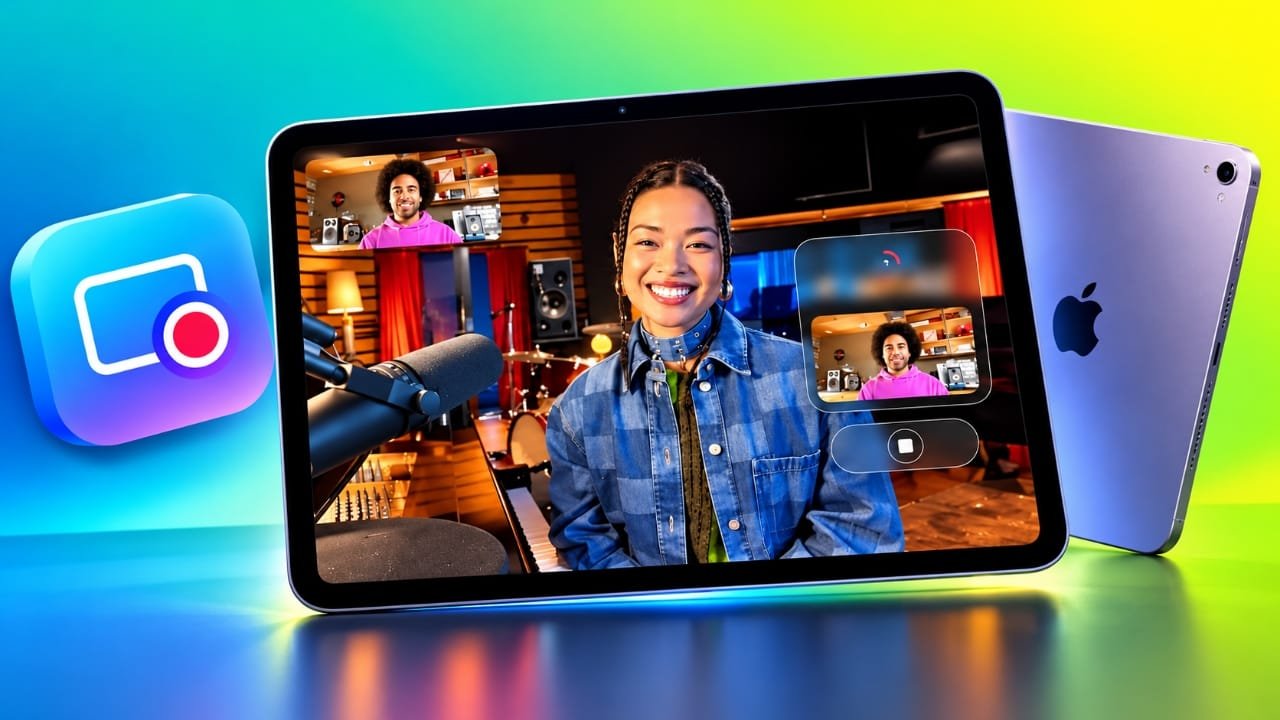
Recording your own voice and video during an online meeting can be useful for podcasts, interviews, presentations, and other creative projects. Apple’s Local Capture feature makes this possible directly from a compatible iPad without requiring a separate recording app.
Introduced with iPadOS 26, Local Capture lets you save your own camera video and microphone audio while participating in a video call. This guide explains how the feature works, how to enable it, where recordings are stored, and how to improve recording quality.
Advertisements
Also read: How to Customize the Photos App on Your iPhone
What Is Local Capture on iPad?
Local Capture is a built-in recording feature that saves your own audio and video directly to your iPad during a video call. Unlike a traditional screen recording, it is designed to capture your side of the conversation rather than the entire screen or everyone else’s video.
This makes it useful for several activities, including:
- Recording remote podcast interviews
- Conducting online interviews
- Saving your own presentation or training session
- Creating educational content
- Recording video meetings for later editing
- Producing videos with remote collaborators
- Keeping a separate recording of your contribution to a conversation
After recording, you can find the saved file in the Files app. You can then share it or import it into compatible editing software.
Local Capture is particularly helpful for a workflow known as double-ended recording. In this setup, each participant records their own audio and video locally. The separate recordings can later be combined during editing, which can be useful when producing podcasts or interviews.
Main Benefits of Local Capture
Here are some of the key advantages of this feature:
- Built into the system: You can start recording without installing a dedicated recording app.
- Works alongside video calls: It can be used while participating in supported calling environments.
- Separate recording: Your own audio and video are saved independently of the meeting platform’s recording system.
- Flexible audio options: You can choose audio-only recording when video is unnecessary.
- External microphone support: Compatible audio equipment can help improve sound quality.
- Easy file management: Recordings can be organized, edited, and shared through the Files app.
Keep in mind that Local Capture is not a complete meeting-recording solution. It is intended primarily for recording your own contribution to a call.
How Does Local Capture Work?
Local Capture operates at the iPadOS level instead of relying entirely on the recording features of a video-calling app. This means you can use it alongside services such as FaceTime, Zoom, Google Meet, and other compatible calling environments.
However, you need to start the recording yourself when you want to use the feature.
Once recording begins, your iPad captures the available input from your microphone and camera. The resulting file is stored locally on your device.
Here are a few important details to understand:
- Local Capture records your own audio and video, not a complete recording of every participant.
- Echo cancellation can help reduce other participants’ voices in your local recording.
- Voice Isolation and Wide Spectrum processing are not automatically applied to the saved Local Capture audio.
- If another app is using the camera, Local Capture may be limited to audio recording.
- Compatible AirPods may provide remote recording controls, depending on the supported device and software configuration.
Because background-noise processing may be limited in the saved file, you might need to improve the audio during editing.
What Do You Need Before Using Local Capture?
Before getting started, check that your iPad meets the requirements for the feature.
You will generally need:
- An iPad that supports iPadOS 26 or a later compatible release.
- A video-calling app or website.
- The necessary camera and microphone permissions for your calling app.
- Enough free storage space for your recordings.
- An external microphone, if you want to use one for better audio capture.
An external microphone is optional. The built-in microphone may be sufficient for casual recordings, while a compatible USB microphone or headset can be helpful for more demanding projects.
Feature availability and some controls may vary depending on your iPad model, operating-system version, and connected accessories.
How to Add Local Capture to Control Center
Before starting a recording, make sure the Local Capture control is available in Control Center.
Follow these steps:
- Swipe down from the top-right corner of your iPad screen to open Control Center.
- Tap the plus button or the option for editing controls, depending on your iPadOS version.
- Select the option to add a control.
- Search for Local Capture.
- Tap the Local Capture control to add it.
- Move the control to a convenient position if you prefer.
Once added, you can access Local Capture from Control Center while using a compatible video-calling app.
If you cannot find the control, check your iPadOS version and confirm that your device supports the feature.
How to Start and Stop a Local Capture Recording
After adding the control, you can begin recording during a video call.
Starting a Recording
- Open FaceTime, Zoom, Google Meet, or another compatible calling app.
- Join your meeting or start your call.
- Swipe down from the top-right corner to open Control Center.
- Touch and hold the Local Capture control to view its options.
- Choose whether to record audio and video or audio only.
- Tap Start Recording.
Your iPad will begin capturing your own available audio and video while you continue with the call.
Stopping a Recording
When you have finished recording, open Control Center again and select the Local Capture control. Choose End Recording to stop the session.
Depending on the supported workflow, the recording may also end when the call finishes.
Afterward, look for a notification confirming that the file has been saved. You can open the Files app to locate it.
Important: If your camera is already being used by another app, the recording may contain audio only.
How to Choose a Microphone for Local Capture
The microphone you use can make a noticeable difference in the quality of your recording. If you regularly record interviews or podcasts, you may prefer a compatible external microphone over the iPad’s built-in microphone.
The available input controls can help you select the appropriate audio source.
To choose a microphone:
- Open the video-calling app or website you are using.
- Open Control Center.
- Tap the active app or browser’s control at the top, if available.
- Look for the Input option.
- Select the microphone you want to use.
The exact menu names may vary by software version and application.
You can select a supported USB microphone, headset, or another available audio input. Some compatible USB microphones may also provide an input-gain adjustment.
Input gain controls the strength of the microphone signal. If the gain is too high, your voice may sound distorted. Start with a moderate setting and test your audio before an important recording.
Can You Use Voice Isolation With Local Capture?
Voice Isolation can help reduce unwanted background sounds during a live conversation. However, the audio saved by Local Capture does not necessarily include the same processing applied to the live call.
This distinction is important if you are recording in a noisy environment.
To check the available microphone mode during a call:
- Open your video-calling app.
- Open Control Center.
- Select the active app or browser control.
- Look for the microphone mode settings.
- Choose Voice Isolation if the option is available.
Voice Isolation can improve how your voice sounds to other people during the call, but you should not assume that it will automatically clean up the separate Local Capture file.
For the best results, record in a quiet room and use audio-editing software to reduce any remaining background noise when necessary.
Where Are Local Capture Recordings Saved?
Local Capture recordings are saved in the Files app. The default location is generally the Downloads folder, unless you have selected another destination.
To find a recording:
- Open the Files app on your iPad.
- Tap Browse if the folder list is not already visible.
- Open Downloads.
- Look for your saved recording.
If the file is missing, check the save location configured in Settings and confirm that the recording finished successfully.
It is also worth checking the available storage space on your iPad, particularly if you are recording long sessions.
How to Change the Local Capture Save Location
If you use Local Capture frequently, keeping your files organized can save time later.
You can select a different destination through the available Local Capture settings.
Follow these steps:
- Open Settings.
- Select General.
- Find Local Capture.
- Tap Save Location if the option is available.
- Browse to the folder where you want to keep your recordings.
- Select the appropriate folder and confirm your choice.
The exact wording and available options may differ between software versions.
For example, you could create a folder named Podcast Recordings in the Files app and use it to store your interview files. This makes it easier to find recordings without searching through unrelated downloads.
You can also create separate folders for meetings, presentations, tutorials, and other projects.
How to Share a Local Capture Recording
Once the recording has been saved, you can share it with another person or move it to an editing workflow.
Here is how:
- Open the Files app.
- Navigate to the folder containing your recording.
- Select the file.
- Tap the Share button.
- Choose an available option, such as AirDrop, Messages, Mail, or another compatible sharing service.
The available options depend on your device, account settings, and installed apps.
If you are working on a remote podcast or interview, you can exchange recordings with the other participants. Separate files can then be synchronized and combined in compatible audio or video editing software.
Before sharing a recording, make sure you have permission to distribute any content it contains.
Can Local Capture Record Audio Only?
Yes. Local Capture can be useful when you only need sound and do not require a video file.
When setting up a recording, select Audio Only if that option is available.
This mode may be suitable for:
- Audio-only podcast interviews
- Voice recordings during online conversations
- Situations where video is unnecessary
- Sessions where conserving storage space is a priority
- Cases where the camera is unavailable or being used elsewhere
An audio-only file can be easier to manage than a video recording, although the actual storage savings depend on the length and format of the recording.
If you frequently record audio without video, check the available Local Capture settings for a dedicated audio-only option.
Using AirPods to Control Local Capture
Some supported AirPods and AirPods Pro models can be used to control recording remotely during a compatible video call.
This can be convenient when your iPad is positioned on a tripod, placed across a desk, or set up at a distance from your seat.
For example, if you are recording an interview and cannot easily reach the iPad screen, compatible AirPods controls may let you start or stop a recording without moving toward the device.
However, remote recording controls depend on accessory compatibility and software support. Check the instructions for your particular AirPods model and iPadOS version before relying on this feature for an important session.
Tips for Better Local Capture Recordings
A few simple preparations can improve the quality and reliability of your recordings.
1. Use a Suitable Microphone
Clear audio is essential for interviews, podcasts, and presentations. A good external microphone may provide better results than the built-in microphone, especially when recording in a controlled setup.
Choose equipment that works with your iPad and test it before recording.
2. Check the Audio Input
Before starting, confirm that the correct microphone is selected. Otherwise, your iPad might use a different input than the one you intended.
A short test recording can help you identify problems early.
3. Keep Enough Storage Available
Video files can occupy considerable space, particularly during longer sessions. Remove unnecessary files or transfer older recordings to another storage location before starting a lengthy project.
Avoid beginning an important recording when your device is almost full.
4. Adjust the Microphone Gain
Set the input level so that your voice is clear without becoming distorted. Very high input levels can produce clipping, which may be difficult to correct during editing.
If your microphone offers gain controls, test different settings before the actual session.
5. Improve Your Lighting and Framing
Position your iPad at approximately eye level and make sure your face is well lit. Avoid placing a bright window directly behind you, as this can make your face appear dark.
A stable stand can also help keep the video frame consistent.
6. Reduce Background Noise
Choose a quiet recording location and turn off unnecessary noise sources where possible. Since the saved Local Capture audio may not receive the same processing as the live call, a quiet environment can make a meaningful difference.
7. Review Your File After Recording
After finishing, open the saved recording and check that the audio and video are usable. Confirm that the beginning and end of the session were captured correctly before sharing the file or deleting other copies.
Common Local Capture Problems and Their Solutions
If Local Capture does not work as expected, try the following troubleshooting steps.
| Problem | Possible solution |
|---|---|
| Local Capture is unavailable | Check device compatibility and install any available supported iPadOS updates. |
| The control is missing from Control Center | Open the control editor and add Local Capture manually. |
| The recording cannot be found | Check Downloads and the save location selected in Settings. |
| The recording contains audio but no video | Check whether another app is using the camera and review the selected recording mode. |
| The audio contains background noise | Record in a quieter space and use audio-editing tools if necessary. |
| The microphone sounds distorted | Reduce the input gain and test the microphone again. |
| The recording fails to save | Check available storage, confirm that the recording has ended, and try a short test session. |
| An external microphone is not detected | Check the connection, accessory compatibility, and the selected input source. |
If the problem continues, restart the iPad and check Apple’s current support documentation for your software version.
Also read: AirPods Volume Too Low? 14 Ways to Make AirPods Louder on iPhone in iOS 27
Final Thoughts
Local Capture provides a practical way to record your own audio and video during online calls without depending entirely on a meeting platform’s built-in recording system.
It can be useful for podcasters, remote interviewers, educators, presenters, and anyone who needs a separate recording of their contribution to a conversation. The ability to save files locally also makes it easier to organize and edit content later.
The most important point to remember is that Local Capture is not designed to record an entire video meeting. It focuses on your own available audio and video, making it especially useful when participants need separate recordings that can be combined during post-production.
Before using it for an important project, check your device’s compatibility, select the correct microphone, make sure enough storage is available, and test the recording process.
With a little preparation, Local Capture can become a useful part of your iPad recording workflow.

Abhi Rajput, founder of EarnAbhi.in, is a tech lover with 6+ years of experience in SEO, digital tools, and smartphone troubleshooting. He writes simple, clear, and useful guides to help people solve real tech problems.