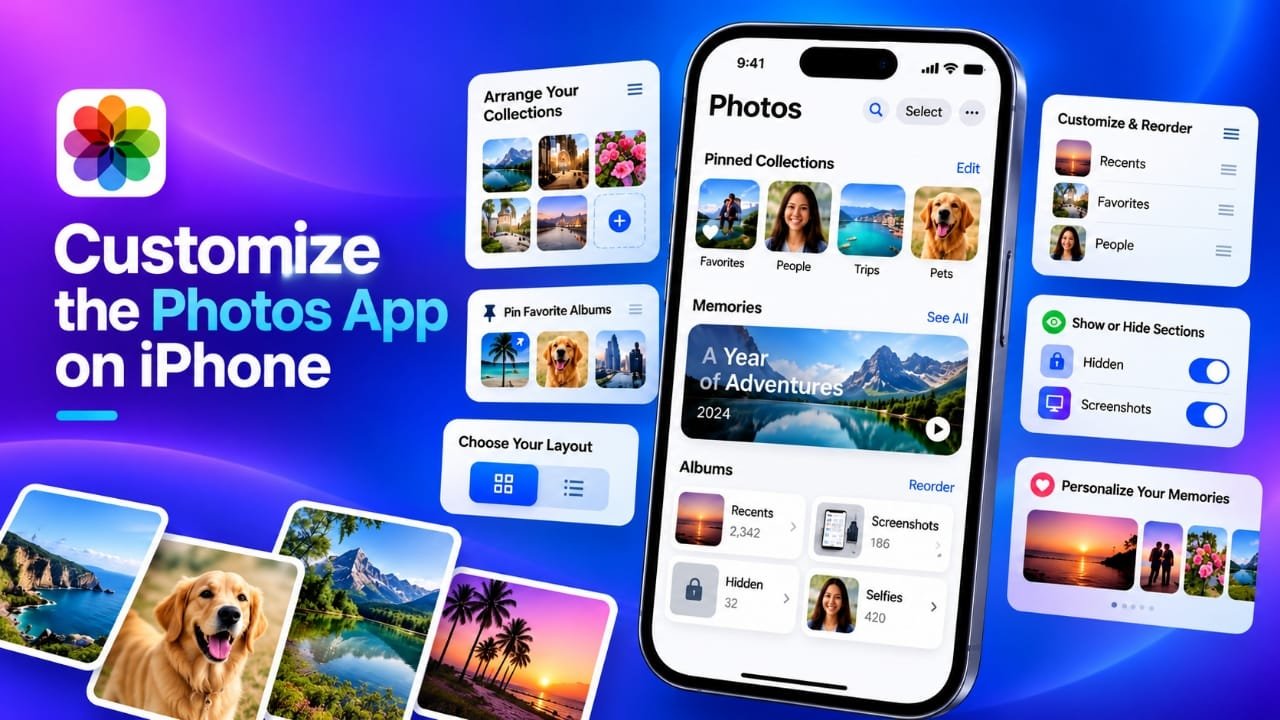
The Photos app on iPhone offers several ways to organize your pictures and make the app easier to use. You can rearrange collections, change how they appear, filter your photo library, manage pinned items, and control which photos are highlighted.
Apple introduced a major redesign to Photos with iOS 18. Since then, the company has continued adjusting the interface and adding more customization options. The newer Photos experience gives you more control over both the Library and Collections sections.
Advertisements
If you do not like the default arrangement, you can change it to better match the way you use the app.
Also read: AirPods Volume Too Low? 14 Ways to Make AirPods Louder on iPhone in iOS 27
Change the Appearance of Collections
The Collections section contains different groups of photos, albums, people, memories, and other automatically organized content. You can change how these collections are displayed.
To change the layout:
- Open the Photos app.
- Select Collections from the bottom of the screen.
- Tap the three-dot menu near the top.
- Choose the layout you prefer:
- Large Grid for bigger collection tiles.
- Small Grid for smaller tiles.
- Mixed Grid for a combination of sizes.
- Collapse All to reduce the visual space used by collection images.
- If you want to change their order, choose Reorder.
- Press and hold a collection, then move it to your preferred position.
- Tap Done when you finish.
If you use an iCloud Shared Photo Library, you may also be able to choose whether Collections displays your personal library, shared library, or both.
A useful approach is to move the collections you use regularly closer to the top. This can save time when you frequently access albums or other sections.
Sort Photos in Your Library
The main Library can also be sorted according to when photos were added or when they were originally taken.
To change the sorting method:
- Open Photos.
- Go to Library.
- Tap the Sort and Filter button.
- Select either Added or Captured.
Choosing Added arranges pictures according to when they were added to the library. Captured organizes them according to the date they were taken.
This can be especially useful if you recently imported a large number of older pictures.
Use Filters to Find Specific Photos
Instead of browsing through your entire library, you can apply filters to narrow down the content shown on screen.
Open the Photos app, go to your Library, and tap Sort and Filter. Depending on your iPhone and software version, you can use options such as:
- Edited
- Favorites
- Shared with You
- Captured by Me
- Media Types
You can combine filters when looking for something specific. For example, selecting a particular media type can help you display only videos, screenshots, or photographs.
When you want to see everything again, open the filtering options and choose Remove Filters.
Keep Screenshots and Other Content Out of the Main Library
Screenshots and shared pictures can sometimes make a photo library feel crowded. iPhone provides options that allow certain categories to be hidden from the main Library without deleting the actual files.
To adjust these options:
- Open Photos.
- Tap Sort and Filter.
- Select View Options.
- Choose the categories you do not want displayed in the main Library, such as:
- Screenshots
- From My Mac
- Shared with You
You can select the option again later if you want that content to appear in the Library.
This is useful if you want your main photo timeline to focus primarily on pictures you have personally taken.
Manage People and Pets
Photos can automatically group pictures based on people and pets it recognizes. These groups can make it easier to find pictures of a particular person or animal.
You can also control which people appear in this section.
To manage these groups:
- Open Photos.
- Go to Collections.
- Scroll down and open People & Pets.
- Tap Edit.
- Select the people you want to manage.
- Use the available options to hide or adjust their appearance in the collection.
You may also be able to create a group containing multiple people. This can be useful when several individuals frequently appear together in your photos.
If Photos has not identified someone you want to add, use the Add (+) option and follow the available instructions.
You can also make other adjustments, such as changing a person’s key photo or combining groups that belong to the same person.
Customize Pinned Collections
Pinned Collections are designed to give you quick access to albums and other frequently used sections. The automatically selected items may not always match your personal preferences, so you can change them.
To manage your pinned items:
- Open Photos.
- Go to Collections.
- Find Pinned Collections.
- Tap Edit.
- Use the + button to add an item.
- Use the – button to remove an item.
- Press and hold a pinned collection to move it into a different position.
- Tap Done when finished.
You can also press and hold an album or collection and look for options such as Pin or Unpin, depending on the item.
Keeping your most frequently used albums near the beginning can make everyday navigation much easier.
Remove Pictures From Featured Photos
The Photos app can automatically select certain pictures to display in Featured Photos and other curated areas. If you do not want a particular image included there, you can remove it from the featured section without necessarily deleting the original picture from your library.
To remove a photo:
- Open Photos.
- Select Collections.
- Find and open Featured Photos.
- Tap Select.
- Choose the pictures you do not want included.
- Tap the three-dot menu.
- Select the option to remove the selected photos from Featured Photos.
The exact wording of some options may vary depending on your iOS version.
Create and Organize Albums
Albums are still a useful way to manually organize photographs.
To create a new album:
- Open Photos.
- Go to Collections.
- Open Albums.
- Tap the + button.
- Choose New Album.
- Give the album a name.
- Select Add Photos.
- Pick the pictures you want to include.
- Save the album.
You can also change how your albums are arranged. If you choose a custom sorting method, press and hold an album and drag it to the position you prefer.
Depending on the available options on your iPhone, you can also combine albums by dragging one onto another.
Rearrange Media Types and Utilities
The Media Types and Utilities sections contain shortcuts for different kinds of content and tools. If their default order is not convenient, you can rearrange them.
To change the order:
- Open Photos.
- Select Collections.
- Scroll to Media Types or Utilities.
- Tap Edit.
- Press and hold an item.
- Drag it to the position you want.
- Tap Done.
This can make frequently used categories easier to access.
Turn Off Recently Viewed and Recently Shared
If you do not want Recently Viewed or Recently Shared sections displayed under Utilities, you can change the relevant Photos settings.
On supported iOS versions:
- Open Settings.
- Tap Apps.
- Select Photos.
- Look for the relevant album or display settings.
- Turn off Show Recently Viewed & Shared if the option is available.
You can also review the Photos settings related to featured content. These controls can help reduce automatically surfaced Memories and other suggested content.
Make the Photos App Work Better for You
The Photos app has changed considerably over recent iOS versions, but you do not have to use its default arrangement.
A few simple changes can make a noticeable difference. You can move important collections closer to the top, keep frequently used albums pinned, apply filters when searching for specific content, and reduce categories that make the Library feel crowded.
If you regularly use your iPhone for photography, spending a few minutes organizing these settings can make the Photos app easier to navigate and better suited to your personal workflow.
Frequently Asked Questions
Can I change the order of Collections in Photos?
Yes. On supported iOS versions, you can use the reorder option in Collections and move available sections into a different position.
Can I hide screenshots from my main photo library?
On supported versions of iOS, Photos provides a View Options setting that can hide screenshots from the main Library without deleting them.
Can I pin an album in Photos?
Yes. Supported versions of the Photos app allow you to add albums and other useful sections to Pinned Collections for quicker access.
Does removing a photo from Featured Photos delete it?
Removing an image from a featured section is different from deleting it from your photo library. Always check the wording of the option before confirming an action.
Can I organize photos into my own albums?
Yes. You can create albums, give them custom names, add selected photos, and arrange albums according to your preferences.
Also read: How to Check iPhone Battery Cycle Count: A Simple Guide
Final Thoughts
The Photos app offers much more control than its default layout may suggest. Once you adjust Collections, albums, filters, pinned items, and other available settings, it becomes easier to keep the content you use most within reach.
The best setup depends on how you use your iPhone. If you mainly browse personal photos, you may want a cleaner Library. If you frequently work with albums, keeping those collections easily accessible can save time.
Take a few minutes to explore the available customization options and create a Photos layout that fits your own needs.

Abhi Rajput, founder of EarnAbhi.in, is a tech lover with 6+ years of experience in SEO, digital tools, and smartphone troubleshooting. He writes simple, clear, and useful guides to help people solve real tech problems.