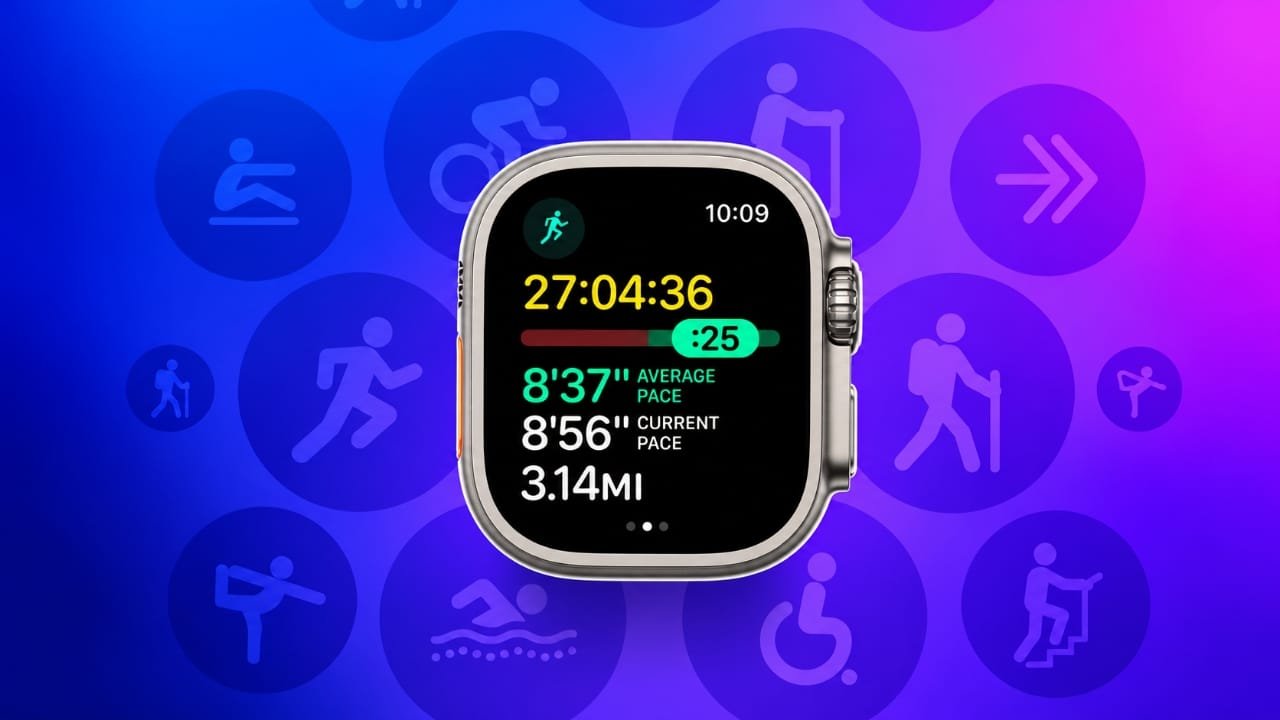
The Apple Watch Workout app makes it easier to track physical activity, monitor workout performance, and review your fitness progress. Whether you enjoy walking, running, cycling, swimming, or strength training, the app provides useful information about your exercise sessions.
You can also customize workout screens, set training targets, and use advanced features to make your fitness routine more organized. Once your workout is complete, the recorded information can be viewed in the Fitness app on your paired iPhone.
Advertisements
In this guide, you will learn how to start and stop workouts, customize tracking options, explore advanced features, and solve common problems.
Also read: Local Capture on iPad: What It Does and How to Use It
Quick Facts About the Apple Watch Workout App
| Feature | Details |
|---|---|
| App name | Workout |
| Available on | Compatible Apple Watch models |
| Supported activities | Walking, running, cycling, swimming, yoga, strength training, and more |
| Workout tracking | Time, heart rate, distance, pace, and other activity-specific metrics |
| iPhone integration | Apple Fitness and Health apps |
| Customization | Workout views, intervals, and selected alerts |
| Advanced options | GPS routes, heart rate zones, and multisport tracking on supported models |
| Main purpose | Record workouts and review fitness progress |
Note: Available features depend on your Apple Watch model, watchOS version, and selected workout type.
What Is the Workout App on Apple Watch?
The Workout app is a built-in feature that lets you record exercise directly from your wrist. It collects relevant information while you exercise and presents a summary when you finish.
Depending on the activity and your device, you may be able to view your workout duration, active calories, heart rate, distance, pace, and other performance measurements.
The app supports many types of exercise, including:
- Outdoor and indoor walking
- Outdoor and indoor running
- Cycling
- Pool and open-water swimming
- Hiking
- High-intensity interval training (HIIT)
- Yoga and Pilates
- Dance
- Rowing and elliptical workouts
- Traditional and functional strength training
Additional workout categories are available, and the selection can vary by software version.
Your recorded sessions can sync with the Fitness and Health apps on your iPhone. These apps help you review previous workouts and understand how your activity changes over time.
How to Start a Workout on Apple Watch
Starting a workout takes only a few steps.
- Press the Digital Crown to open the app list.
- Find and open the Workout app.
- Browse the available activities.
- Tap the workout that matches your exercise.
- Wait for the countdown to finish, if one appears.
Your watch will begin recording the session and display information relevant to your chosen activity.
If you cannot find the exercise you want, scroll through the available options. Depending on your watchOS version, you may see an option to add another workout type.
How to Pause or End a Workout
When you need a break, you can pause the workout instead of ending it.
- Open the active workout screen.
- Press the side button and Digital Crown together on supported watchOS versions, or use the pause control shown on the screen.
- To finish, access the workout controls.
- Tap End and confirm if prompted.
The exact controls may differ depending on your watchOS version and workout settings.
After ending the session, review the summary to see the information collected during your exercise.
How to Customize Workout Information
The default workout screen may not show the measurements you care about most. Apple Watch allows you to customize certain workout views so important information is easier to find.
For example, runners may prefer pace and distance, while cyclists might focus on speed and heart rate.
To change the displayed metrics:
- Open the Workout app.
- Find the workout you want to customize.
- Open its settings or workout view options.
- Select the available metrics or edit the workout screens.
- Arrange the information according to your preferences, where supported.
The available customization options vary by activity and software version.
Once configured, the selected views can make it easier to check your performance without navigating through unnecessary information during exercise.
How to Create Custom Interval Workouts
Interval training involves alternating between different levels of effort. For example, you might run quickly for one minute and then jog slowly for two minutes.
Compatible Apple Watch software versions allow you to create structured workouts for supported activities.
To set up an interval session:
- Open the Workout app.
- Select a compatible workout, such as running.
- Open the workout customization options.
- Choose the option for a custom workout, if available.
- Add work and recovery intervals.
- Set the desired duration or distance for each interval.
- Save the workout and start when you are ready.
You can adjust the intervals to suit your current fitness level and training goals.
Beginners should start with manageable sessions and increase the difficulty gradually rather than trying to complete demanding intervals immediately.
How to Set Heart Rate Zones
Heart rate zones help you understand the intensity of your exercise. They divide your heart rate into ranges that can be useful for endurance training, moderate exercise, and higher-intensity sessions.
Apple Watch can estimate heart rate zones automatically or allow manual adjustments on supported software versions.
To review the settings:
- Open the Watch app on your paired iPhone.
- Go to My Watch.
- Select Workout.
- Find Heart Rate Zones.
- Choose automatic calculations or adjust the zones manually, if available.
Automatic zones may be based on personal information and estimates of your maximum heart rate. These estimates are not perfect for everyone.
If you use heart rate zones for a specific training program, consider whether the default calculations suit your needs. Heart rate readings can also be affected by watch fit, movement, temperature, and other factors.
How to Set Pace Alerts
Pace alerts can help runners maintain a more consistent speed during outdoor training.
If your watch supports this feature for the selected activity, you can configure a target pace and receive notifications when your pace moves outside the chosen range.
To configure a pace alert:
- Open the Workout app.
- Select a compatible running workout.
- Open its workout settings or alerts menu.
- Find the Pace option.
- Set your preferred pace target or range.
- Begin your workout.
The available alert options may vary by watchOS version and workout type.
A pace target should match your current ability. You do not need to run at your fastest speed to benefit from consistent training.
Warm-Up, Work Intervals, and Cool-Down
A structured workout can include more than the main exercise period. Warming up prepares you for activity, while cooling down gives you time to gradually reduce your effort.
On compatible Apple Watch versions, custom workout settings may let you include warm-up periods, work intervals, recovery intervals, and cool-down sections.
To build a structured session, open the settings for a supported workout and look for the custom workout options. Add the available stages and set their duration or distance where supported.
For example, a beginner running session could include:
- A short, comfortable warm-up walk
- Alternating periods of easy jogging and walking
- A relaxed cool-down walk
Choose the duration according to your fitness level. Stop exercising if you experience unusual symptoms such as chest pain, faintness, or severe shortness of breath.
Advanced Workout Features for Regular Athletes
The Apple Watch Workout app includes several tools that can be useful for people who train regularly.
GPS Route Tracking
Supported Apple Watch models can record outdoor workout routes using GPS. You can review route information in the Fitness app after the session.
GPS tracking is particularly helpful for outdoor runners, cyclists, and hikers who want to understand their distance and route.
Buildings, weather conditions, trees, and other environmental factors can affect GPS accuracy.
Running Performance Measurements
Compatible models and software versions can record additional running measurements, such as stride length, ground contact time, and vertical oscillation.
These metrics offer another way to review running technique. However, they should be interpreted in context rather than treated as a complete assessment of running form.
Haptic and Audio Feedback
Your Apple Watch can provide wrist taps and, where supported, spoken workout updates. These alerts can help you monitor progress without constantly looking at the display.
Available feedback depends on the workout, device, and settings.
Swimming Tracking
Apple Watch supports pool and open-water swimming on compatible models.
Pool workouts can record information such as lengths, distance, and swimming intervals. Some supported swimming sessions also include stroke-related measurements and SWOLF, a metric that combines stroke count and time to help assess swimming efficiency.
Water Lock helps prevent unintended screen interactions while the watch is wet. You can use the watch’s water-related controls to manage the display after swimming.
Always follow Apple’s guidance for your specific watch model and avoid using a device in conditions outside its water-resistance rating.
Automatic Pausing
Auto-Pause can stop recording workout progress when you stop moving during supported activities, such as running or walking.
This is useful when you regularly pause at traffic lights or take short breaks.
To check the setting:
- Open the Watch app on your iPhone.
- Select My Watch.
- Tap Workout.
- Look for Auto-Pause.
- Enable it for the supported activities you want to track.
Not every workout type offers this option.
How to Track Multiple Activities in One Session
Multisport workouts are useful for triathlon training and exercise routines that combine activities.
For example, a triathlon training session may include swimming, cycling, and running. Instead of recording each activity as a completely separate session, a compatible Apple Watch can combine them into one multisport workout.
To set up a multisport session:
- Open the Workout app.
- Find the Multisport option, if available.
- Open the setup controls.
- Add the activities you want to include.
- Arrange them in the correct order.
- Start the workout and follow the on-screen instructions to move between activities.
Each activity can have its own measurements, while the overall session remains grouped together.
The precise setup and transition controls depend on the watch model and software version.
Workout Reminders and Automatic Detection
Apple Watch can recognize signs that you have started or stopped certain activities and send reminders to begin or finish recording a workout.
This feature is helpful if you occasionally forget to start tracking before exercising.
To review the reminder settings:
- Open the Watch app on your iPhone.
- Go to My Watch.
- Tap Workout.
- Find the workout start and end reminder options.
- Enable the reminders you want.
Available reminders vary by activity and software version.
Remember that automatic detection is not the same as manually starting a workout. It may take time to recognize an activity, and the recorded session might not include every moment from the beginning.
For the most consistent record, start the Workout app yourself before exercising.
How to View Your Workout History
After you finish a session, Apple Watch displays a summary of the recorded activity. You can also review workout details on your paired iPhone.
Viewing Workouts on Apple Watch
The workout summary provides an overview of the session, including the metrics available for that activity.
Depending on your watchOS version, you may also be able to find previous activity information through the Fitness or Activity interface.
Viewing Workouts on iPhone
To review your workout history:
- Open the Fitness app on your iPhone.
- Find the workout or activity history section.
- Select the session you want to inspect.
- Review the available details, such as duration, heart rate, distance, and route information.
The measurements shown depend on the type of workout and the information your device recorded.
The Health app can also display relevant health and activity data from Apple Watch and compatible third-party apps.
How to Delete a Workout Record
If a workout was recorded by mistake, you can manage its associated data through the Fitness app or the Health app, depending on the information you want to remove and your software version.
Before deleting anything, review the available options carefully. Removing a workout may also affect related activity summaries or records.
The exact deletion process can vary across iOS versions, so check the current controls on your iPhone.
Tips for Better Workout Tracking
A few simple habits can help you get more useful information from your Apple Watch.
1. Choose the Correct Workout Type
Select the activity that most closely matches what you are doing. Different workout categories may record different measurements, so choosing an appropriate option improves the usefulness of your workout history.
2. Wear Your Watch Securely
Your watch should fit comfortably against your wrist without being excessively tight. A loose fit can affect heart rate readings, especially during movement.
Keep the back of the watch and the sensors clean according to Apple’s care instructions.
3. Customize Your Workout Screens
Place your most important measurements where you can see them easily. For example, runners may prioritize pace and distance, while people doing strength training may prefer elapsed time and heart rate.
4. Review Your Progress Regularly
Look at your workout history instead of judging progress from a single session. Comparing similar workouts over several weeks can help you identify changes in consistency, duration, or performance.
5. Use Alerts Wisely
Pace and heart rate alerts can help you stay aware of your effort. However, do not depend entirely on watch readings to decide whether an activity is safe or appropriate.
Pay attention to how you feel during exercise.
6. Manage Battery Life
Long workouts with GPS and other active features can use more battery power. Before a long hike, ride, or run, make sure your watch has sufficient charge.
You can also review the available power-saving settings on your model. Some settings reduce the amount of information recorded, so check which tracking features remain active.
7. Connect Compatible Fitness Apps
Some third-party fitness apps can exchange data with Apple Health when you grant the necessary permissions.
If you use services such as Strava or Nike Run Club, check their available Apple Watch integrations and Health permissions before connecting them. Supported features vary by app.
8. Make Fitness Goals Realistic
Set targets that fit your schedule and current fitness level. Consistency is often more useful than attempting an overly demanding workout and struggling to repeat it.
Use the information from your watch as a guide rather than a substitute for professional coaching or medical advice when needed.
Safety and Wellness Features to Know About
Apple Watch offers several health and safety features, but their availability varies by model, country, and software version.
Some features to know about include:
- Emergency SOS: Provides access to emergency assistance through supported settings and services.
- Fall Detection: Can help detect certain hard falls and may contact emergency services under configured conditions.
- Heart Rate Notifications: Can alert you to certain unusually high or low heart rate readings while you are inactive.
- Noise Notifications: Can warn you when surrounding sound levels reach potentially harmful levels.
- Mindfulness: Offers tools such as guided breathing and reflection sessions on supported software versions.
Certain models and regions also support additional health measurements. These features may have specific eligibility requirements and limitations.
For example, blood oxygen measurement is not available on every Apple Watch model or in every market. It should not be treated as a replacement for medical evaluation.
Likewise, workout heart rate and recovery information can provide useful context, but they cannot diagnose a health condition.
Indoor vs. Outdoor Workout Tracking
The information recorded by Apple Watch can differ depending on whether you exercise indoors or outdoors.
| Measurement | Outdoor Workouts | Indoor Workouts |
|---|---|---|
| Distance | May use GPS and motion sensors | Often estimated using motion sensors |
| Pace or speed | Uses available GPS and motion data | Estimated from movement and other available data |
| Route map | Available for supported outdoor activities | Usually unavailable |
| Elevation | May use supported elevation sensors and data | Depends on the workout and available sensors |
| Calibration | Outdoor activity can help improve estimates | Accuracy may benefit from previous calibration |
These differences are especially noticeable during running and walking.
For example, an outdoor run may include a GPS route, while a treadmill workout generally relies more heavily on motion sensors and estimated distance.
Neither method is guaranteed to be perfectly accurate. Device settings, workout conditions, and individual movement patterns can influence the results.
Common Apple Watch Workout Problems and Solutions
Occasionally, the Workout app may not record the information you expect. The following checks can help you identify common issues.
| Problem | What to Check |
|---|---|
| GPS route is inaccurate | Move to a more open area and check location-related settings |
| Heart rate is missing or inconsistent | Adjust the watch fit, clean the sensors, and check whether heart rate tracking is available |
| Workout is missing from history | Check the Fitness and Health apps and allow time for data synchronization |
| Battery drains quickly | Review power-saving options and the features active during the workout |
| Workout reminders do not appear | Check the reminder settings in the Watch app |
| Indoor distance seems incorrect | Review workout calibration and compare similar sessions |
| Third-party app data is missing | Check the app’s Apple Health permissions and synchronization settings |
If the problem continues, restart your Apple Watch and paired iPhone, check for available software updates, and consult Apple’s official support resources for your model.
Avoid assuming that a missing workout is permanently lost before checking the relevant history and synchronization settings.
Frequently Asked Questions
Can I use the Workout app without my iPhone?
Yes. Many workout types can be started and recorded directly on Apple Watch without carrying your iPhone. However, some features, connectivity options, and data sources may require the phone or an internet connection.
Does Apple Watch automatically track every workout?
No. The watch can recognize certain activities and send reminders, but automatic detection does not cover every exercise or guarantee a complete recording. Starting a workout manually is often the better choice.
Can I use Apple Watch for strength training?
Yes. The Workout app includes strength-training categories. The information recorded depends on the workout type, device, and available features.
Does the Workout app show calories burned?
It can display active calories and other energy-related estimates for supported activities. These values are estimates and may not exactly match the energy you actually use.
Can I combine running, cycling, and swimming?
Compatible Apple Watch models support multisport workouts, which can combine several activities into a single session. The available setup options depend on your device and watchOS version.
Is the Workout app suitable for beginners?
Yes. Beginners can use it to record walks, runs, and other activities while gradually building a consistent routine. You do not need to use every advanced feature to benefit from basic workout tracking.
Final Thoughts
The Apple Watch Workout app is a practical tool for recording exercise and understanding your activity over time. Its basic functions are easy to use, while features such as custom intervals, heart rate zones, GPS routes, and multisport tracking offer additional options for more experienced athletes.
For the best experience, choose the correct workout type, wear your watch comfortably, and review your results regularly. Remember that fitness measurements are estimates, so use them alongside your own judgment and how you feel during exercise.
Whether your goal is to walk more often, improve your running consistency, or prepare for a multisport event, the Workout app can help you keep track of your efforts and make more informed decisions about your fitness routine.

Abhi Rajput, founder of EarnAbhi.in, is a tech lover with 6+ years of experience in SEO, digital tools, and smartphone troubleshooting. He writes simple, clear, and useful guides to help people solve real tech problems.