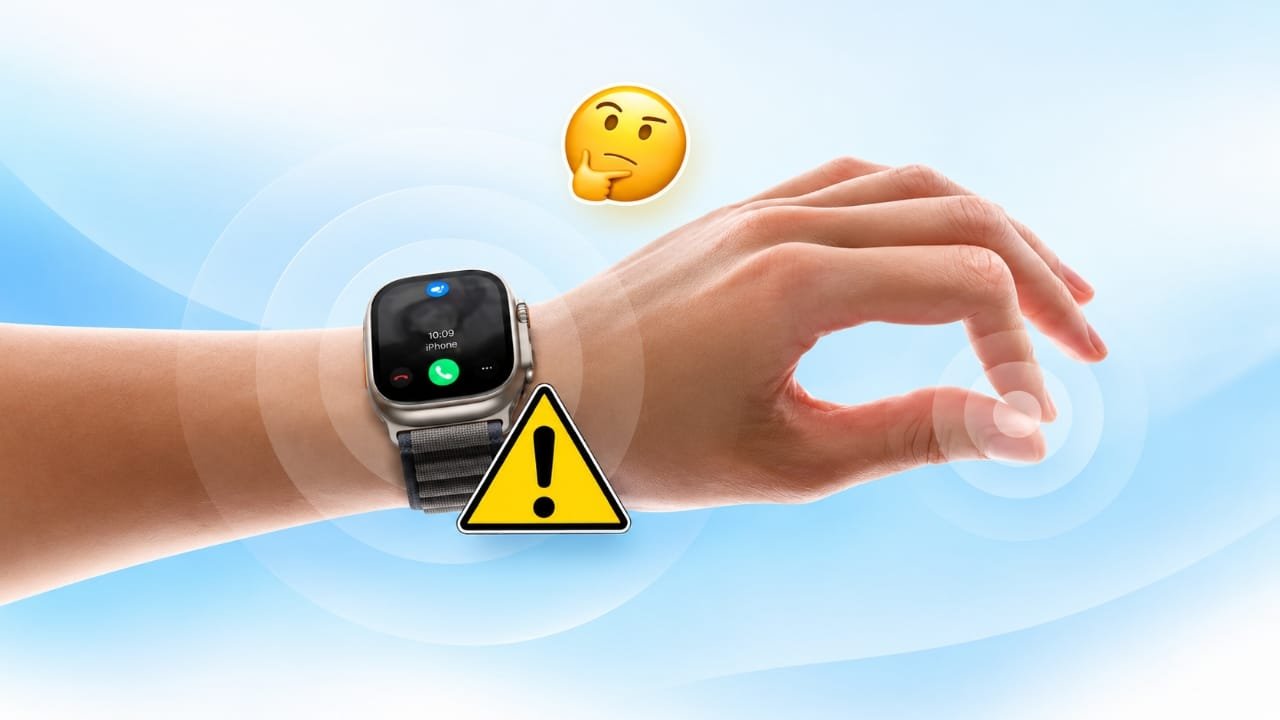
The Double Tap gesture is a convenient Apple Watch feature that lets you perform certain actions without touching the screen. You can use it to answer calls, pause music, dismiss notifications, and navigate supported features with a simple finger movement.
However, the gesture may occasionally stop responding, especially when certain settings are enabled or the watch encounters a temporary software issue.
Advertisements
Fortunately, you can try several troubleshooting methods before assuming that your Apple Watch has a hardware problem. This guide explains nine practical ways to fix Double Tap and get the feature working again.
Also read: How to Use the Workout App on Apple Watch: A Complete Beginner’s Guide
Key Takeaways
- Double Tap is available only on supported Apple Watch models.
- Low Power Mode, Sleep Focus, and certain accessibility settings may affect gesture availability.
- Correct finger movements and a properly fitted watch can help improve recognition.
- Restarting your watch and installing available software updates may resolve temporary issues.
- Double Tap and Single Tap are separate gestures with different functions.
Why Is Double Tap Not Working on Your Apple Watch?
There can be several reasons why your Apple Watch does not recognize the Double Tap gesture. Before changing your settings, it helps to understand what might be causing the problem.
Common causes include:
- Unsupported watch model: Your Apple Watch may not include the built-in Double Tap feature.
- Incorrect finger movement: The gesture may not be recognized if your fingers move too slowly or the movements are inconsistent.
- Power-saving settings: Some power-management settings can restrict gesture functionality.
- Sleep Focus: Certain system states may prevent the gesture from working.
- Accessibility conflicts: Features that use hand gestures may interfere with tap gestures.
- Unsupported apps: Double Tap is not available in every app or on every screen.
- Software problems: A temporary glitch or an outdated software version may affect how the watch responds.
- Wrist Detection issues: Incorrect settings or a loose fit may interfere with normal operation.
- Family Setup limitations: The built-in feature may not be available when an Apple Watch is configured through Family Setup.
Once you identify a possible cause, you can work through the following solutions.
1. Confirm That Your Apple Watch Supports Double Tap
Before troubleshooting, make sure your watch supports the built-in gesture. Not every Apple Watch model offers this feature, even if it runs a recent version of watchOS.
Apple introduced Double Tap on Apple Watch Series 9 and Apple Watch Ultra 2. Support is also available on certain newer models, including Apple Watch SE 3.
Older models, such as Apple Watch Series 8 and the first-generation Apple Watch SE, do not support the built-in Double Tap feature.
To check your watch model:
- Open the Watch app on your paired iPhone.
- Select My Watch.
- Tap General, followed by About.
- Look for the model information.
You can then compare your model with Apple’s official compatibility information.
If your watch supports Double Tap, move on to the next step.
2. Check the Gesture Settings
Sometimes, a gesture setting may have been changed accidentally. Reviewing the available options is a good starting point.
Follow these steps:
- Open Settings on your Apple Watch.
- Look for the gesture-related settings.
- Check whether Double Tap or the relevant tap gesture option is enabled.
- Review any available configuration options.
- If the feature is disabled, enable it and test the gesture again.
The exact menu names and available controls can vary depending on your Apple Watch model and software version. If you cannot find a Double Tap option, check Apple’s instructions for your specific device.
If the feature is already enabled, continue with the next troubleshooting method.
3. Use the Correct Double Tap Movement
Although the gesture is simple, performing it correctly can make a difference.
To use Double Tap:
- Wear your Apple Watch comfortably and securely.
- Wake the display and unlock the watch if necessary.
- Keep your hand relatively steady.
- Bring your thumb and index finger together twice in quick succession.
- Check whether the expected action occurs.
Try making two distinct, quick movements rather than tapping your fingers together slowly.
It is also important to understand the difference between Single Tap and Double Tap. Single Tap, where supported, selects an item or performs a specific action. Double Tap uses two quick finger movements to trigger supported functions.
If the gesture still fails, check whether a system setting is restricting it.
4. Review Low Power Mode and Sleep Focus
Certain Apple Watch settings can affect how Double Tap behaves. Low Power Mode and Sleep Focus are worth checking when the gesture suddenly stops responding.
To review these settings:
- Open Control Center on your Apple Watch.
- Check whether Low Power Mode is active.
- If it is enabled, turn it off temporarily and test Double Tap.
- Check whether Sleep Focus is active.
- If necessary, switch to a different Focus mode and try again.
Also, make sure the display is awake and the watch is unlocked.
If the screen does not wake when you raise your wrist, review the display settings. Theater Mode and Water Lock are also worth checking if they are affecting screen interaction.
Test the gesture again after making any changes.
5. Check Wrist Detection and Watch Fit
Apple Watch uses sensors and system settings to determine whether it is being worn correctly. If the watch is loose or Wrist Detection is disabled, certain functions may not behave as expected.
Here’s what you can do:
- Open Settings on your Apple Watch.
- Select Passcode.
- Check whether Wrist Detection is enabled.
- Make sure the watch fits securely on your wrist without being uncomfortably tight.
- Open Settings > General > Orientation and confirm that the selected wrist and Digital Crown position match how you wear the device.
If you recently changed wrists or adjusted the watch band, correcting these details may help.
Once everything looks right, try Double Tap again.
6. Review Accessibility Settings
Accessibility features make Apple Watch easier to use in different situations. However, some options rely on hand movements and gestures that may conflict with Double Tap.
Depending on your device and software version, features such as AssistiveTouch, Quick Actions, or Zoom with Hand Gestures may affect gesture availability.
To investigate:
- Open Settings on your Apple Watch.
- Select Accessibility.
- Review the enabled features that use hand movements.
- Check Apple’s guidance for any feature that may conflict with Double Tap.
If you rely on an accessibility feature, do not disable it permanently just to test Double Tap. Instead, look for the appropriate configuration or consult Apple’s support documentation before making changes.
If the gesture becomes available after adjusting a conflicting setting, you have likely identified the cause.
7. Test Double Tap in a Supported App
Double Tap does not work everywhere on Apple Watch. Its available actions depend on the screen, app, and software version.
Supported uses may include:
- Answering an incoming call.
- Playing or pausing compatible media.
- Snoozing an alarm.
- Stopping a timer.
- Navigating Smart Stack.
- Scrolling through supported screens.
- Performing certain actions in Camera Remote and other built-in apps.
Some activities, including using the Depth app or recording an ECG, do not support Double Tap.
Third-party apps may also have limited gesture support.
To check whether the feature is actually malfunctioning, return to the watch face or open a supported app. Wake and unlock the watch, then perform the gesture.
If Double Tap works in one place but not another, the issue may be related to the current app or screen rather than the watch itself.
8. Restart Your Apple Watch
A temporary software problem can sometimes prevent a gesture from working properly. Restarting the device is a simple way to rule out this possibility.
Follow these steps:
- Remove your Apple Watch from its charger.
- Press and hold the side button to access the power controls.
- Tap the power option.
- Use the on-screen control to turn off the watch.
- Wait a few seconds.
- Press and hold the side button until the Apple logo appears.
Allow the watch to start completely. Unlock it and test Double Tap again.
A normal restart does not erase your personal data.
If your watch is frozen and cannot restart normally, a force restart may be necessary. However, avoid force-restarting it while a watchOS update is in progress.
Unpairing and pairing the watch again should not be your first step. Try the simpler solutions before considering more extensive troubleshooting.
9. Install Available watchOS Updates
Software updates can introduce improvements, resolve bugs, and address problems affecting device features. If Double Tap continues to fail, check whether an update is available for your Apple Watch.
To check directly on the watch:
- Connect your Apple Watch to Wi-Fi.
- Place it on its charger.
- Open Settings.
- Select General > Software Update.
- Follow the instructions if an update is available.
You can also open the Watch app on your iPhone and select General > Software Update.
Keep your paired iPhone updated when required, and follow Apple’s installation instructions. Avoid interrupting the watch while an update is being installed.
After the update finishes, test Double Tap on the watch face and in a supported app.
If the problem remains, you may need additional help.
When Should You Contact Apple Support?
If you have checked the compatibility requirements, reviewed your settings, restarted the watch, and installed available updates without success, contact Apple Support for further assistance.
Consider requesting help if:
- Double Tap fails consistently in supported situations.
- Your watch has recently been dropped or physically damaged.
- Other sensor-dependent features are also behaving unusually.
- The problem continues after the available troubleshooting steps.
Apple Support can help determine whether the issue is related to software, configuration, or a possible hardware fault.
You can begin by visiting Apple’s official support website or using the Apple Support app on your iPhone.
Also read: Local Capture on iPad: What It Does and How to Use It
Final Thoughts
The Double Tap gesture can make everyday Apple Watch tasks more convenient, but it depends on compatible hardware, appropriate settings, and support from the current app or screen.
If the gesture stops working, start by checking your watch model, gesture settings, Low Power Mode, Sleep Focus, Wrist Detection, and accessibility options. Then test the feature in a supported app and restart the device if necessary.
Installing an available software update is another useful step when simpler fixes do not help.
With a little troubleshooting, you may be able to restore the gesture without taking more drastic measures. If it still does not respond, Apple Support can help you identify the next step.
Have you encountered a Double Tap problem on your Apple Watch? Share which troubleshooting method worked for you in the comments.

Abhi Rajput, founder of EarnAbhi.in, is a tech lover with 6+ years of experience in SEO, digital tools, and smartphone troubleshooting. He writes simple, clear, and useful guides to help people solve real tech problems.