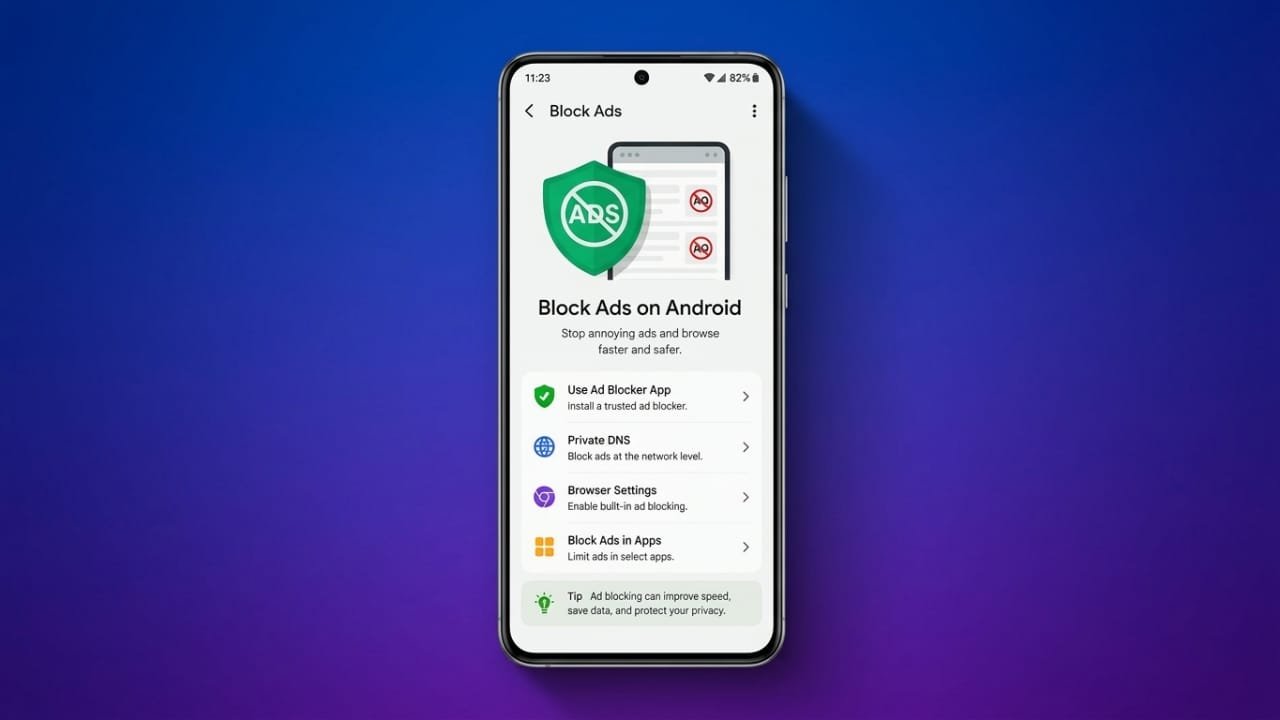
Advertisements are common on Android devices, especially in free apps and while browsing the web. While some ads help developers earn money, too many can interrupt your experience and even raise privacy concerns.
If your phone keeps showing unwanted ads, there are several safe and effective ways to reduce them. This guide explains the most useful methods in simple steps.
Advertisements
Also read: How to Fix Phone Overheating Before It Causes Damage
Key Points
- Remove apps that may be causing unwanted ads.
- Turn off website notifications and browser pop-ups.
- Use trusted ad-blocking tools for safer browsing.
- Improve your privacy by limiting tracking.
Why Do Ads Appear on Android?
Many free Android apps rely on advertising to support development. Because of this, seeing some ads is normal. However, certain apps may display excessive pop-ups, full-screen ads, or banners that make using your phone frustrating.
In some cases, websites send promotional notifications that appear even when the browser is closed. A few unreliable apps may also collect browsing information for advertising purposes. Reviewing your apps and privacy settings can help reduce these issues.
Remove Apps That May Be Showing Ads
If ads started appearing recently, check whether a newly installed app is responsible.
- Open Settings on your phone.
- Go to Apps or Apps & Notifications.
- View the complete list of installed apps.
- Look for apps you don’t recognize or no longer use.
- Uninstall any app that seems suspicious or unnecessary.
If an app cannot be removed, it may have administrator access.
- Open Settings > Security > Device admin apps (the name may vary by device).
- Turn off administrator permission for the app.
- Return to the app list and uninstall it.
Reduce Ads in Your Browser
Most unwanted browser ads can be controlled through your browser settings.
Google Chrome
Chrome offers built-in options to limit disruptive content.
- Open Chrome and tap the three-dot menu.
- Go to Settings > Site settings.
- Enable Pop-ups and redirects blocking.
- Turn on Intrusive ads blocking if the option is available.
- Open Notifications and remove permission for websites you no longer trust.
You can also clear Chrome’s cache by going to Settings > Apps > Chrome > Storage & cache > Clear cache.
Mozilla Firefox
Firefox supports extensions that help improve privacy while browsing. Trusted add-ons such as Ghostery can block many ads, trackers, and pop-ups on websites.
Keep in mind that browser extensions only work inside the browser and do not block advertisements shown within Android apps.
Stop Apps from Displaying Ads Over Other Apps
Some apps use a permission that allows them to appear over other applications. If an app is showing ads on top of your screen, you can disable this feature.
- Open the app’s App info page.
- Tap Display over other apps or Appear on top.
- Turn the permission off.
This can prevent unwanted overlays from appearing while you use your phone.
Improve Security
Installing a trusted mobile security app can help detect apps that behave suspiciously or contain harmful software. Regular security scans make it easier to identify problems before they become more serious.
Also read: How to Fix YouTube Crashing on Android, iPhone, and Web
Final Thoughts
You don’t have to live with constant ads on your Android phone. Removing suspicious apps, disabling unnecessary website notifications, adjusting browser settings, and using reliable privacy tools can greatly improve your browsing experience.
Following these simple steps can make your device feel cleaner, more secure, and more enjoyable to use while helping protect your personal information.

Abhi Rajput, founder of EarnAbhi.in, is a tech lover with 6+ years of experience in SEO, digital tools, and smartphone troubleshooting. He writes simple, clear, and useful guides to help people solve real tech problems.