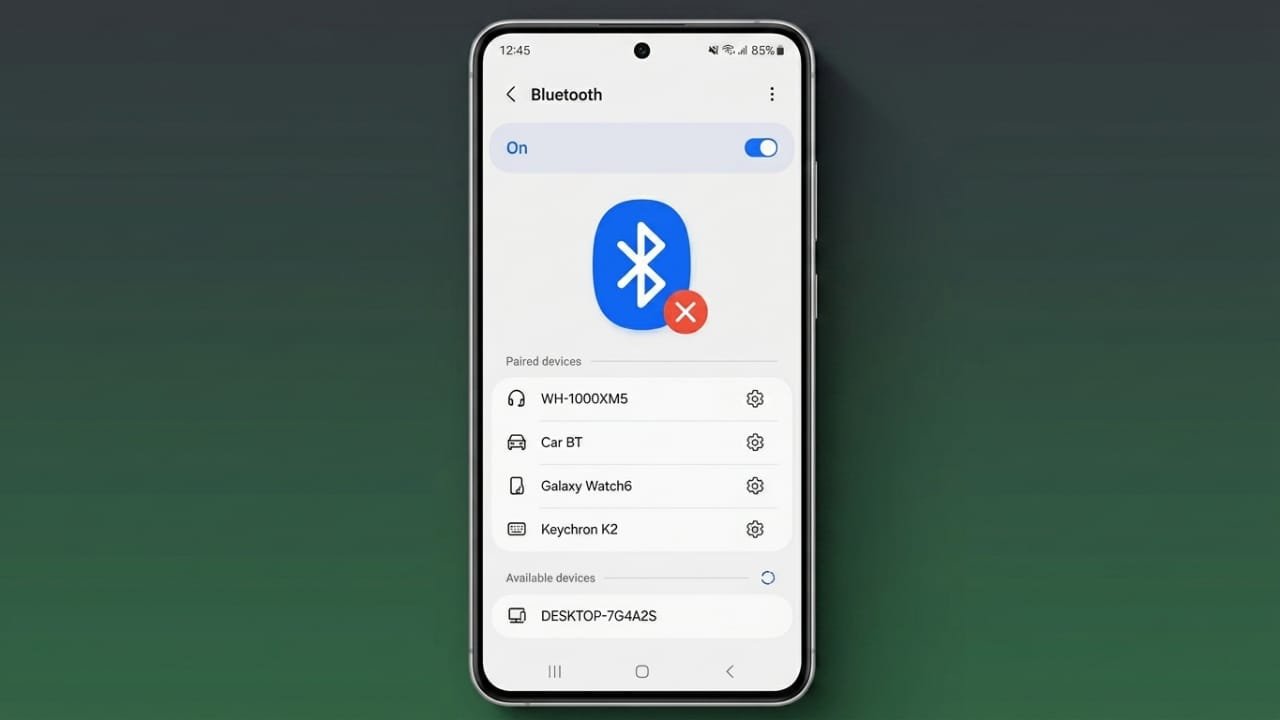
Bluetooth is one of the easiest ways to connect your Android phone with wireless earbuds, speakers, smartwatches, keyboards, and other accessories. However, it may occasionally stop working due to software glitches, outdated settings, or connection conflicts.
The good news is that most Bluetooth problems are easy to solve without professional repair. In many cases, a few simple steps can restore a stable connection within minutes.
Advertisements
Also read: How to Block Ads on Android: A Simple and Effective Guide
Quick Tips Before You Start
Before trying advanced fixes, remember these basic points:
- Restart both your Android phone and the Bluetooth device.
- Remove old Bluetooth pairings and pair the device again.
- Install the latest Android software updates if available.
These simple actions solve many common Bluetooth issues.
Why Bluetooth Stops Working on Android
Bluetooth can stop working for several reasons. Temporary software bugs are one of the most common causes. Sometimes a recent system update may also create compatibility issues with certain accessories.
Other possible reasons include:
- Corrupted Bluetooth cache files.
- Low battery on either device.
- Too much distance between the phone and accessory.
- Physical obstacles such as walls or metal objects.
- Wireless interference from nearby routers or electronic devices.
- The accessory is already connected to another phone or tablet.
- In rare situations, hardware damage to the phone.
Understanding the cause makes it easier to choose the right solution.
Fix Bluetooth Not Working on Android
1. Make Sure Bluetooth Is Enabled
Open the Quick Settings panel and check whether Bluetooth is turned on. If it is already enabled, switch it off, wait a few seconds, and turn it back on. This refreshes the Bluetooth service and may resolve temporary glitches.
2. Confirm the Accessory Is Ready to Pair
Many Bluetooth accessories require pairing mode before they become visible. Follow the instructions provided with your device and keep it close to your phone during the pairing process.
3. Connect Again
Go to Settings > Bluetooth, search for available devices, select your accessory, and complete the pairing process by following the on-screen instructions.
4. Restart Both Devices
Restarting your phone and the Bluetooth accessory clears temporary software issues that may interrupt the connection.
5. Check Battery Levels
Low battery can affect Bluetooth performance. Charge both devices before trying to reconnect.
Fix Pairing and Connection Problems
Stay Within Range
Most Bluetooth devices work best within about 10 meters (33 feet). Moving closer can improve a weak or unstable connection.
Reduce Wireless Interference
Nearby Wi-Fi routers, microwave ovens, and multiple active Bluetooth devices can interfere with the signal. If possible:
- Move away from crowded wireless areas.
- Turn off Bluetooth on devices you are not using.
- Use a 5 GHz Wi-Fi network if your router supports it.
Remove Old Pairings
Saved Bluetooth information can sometimes become corrupted.
To refresh the connection:
- Open Settings > Bluetooth.
- Select the paired accessory.
- Tap Forget, Remove, or Unpair.
- Put the accessory back into pairing mode.
- Pair it again.
Some accessories may ask for a PIN during setup. If required, use the code recommended by the manufacturer.
Clear Bluetooth Cache
If Bluetooth problems continue, clearing the Bluetooth cache may help.
Steps:
- Open Settings.
- Go to Apps.
- Show system apps if necessary.
- Find Bluetooth.
- Open Storage.
- Tap Clear Cache. If available, you can also choose Clear Storage.
- Restart your phone.
This removes temporary Bluetooth data that may be causing connection issues.
Reset Network Settings
When Bluetooth still does not work properly, resetting network settings can resolve deeper software problems.
This reset removes:
- Saved Wi-Fi networks.
- Paired Bluetooth devices.
- Mobile network settings.
Your personal files, photos, apps, and messages remain unchanged.
Update Android
Software updates often include bug fixes that improve Bluetooth performance.
To check for updates:
- Open Settings.
- Tap Software Update or System Update.
- Download and install any available updates.
After updating, test your Bluetooth connection again.
Check for App Conflicts
Some battery-saving or cleaning apps can interfere with Bluetooth services.
You can restart your phone in Safe Mode to see whether a third-party app is causing the problem. If Bluetooth works normally in Safe Mode, uninstall any recently installed apps that may be interfering.
When Hardware May Be the Problem
If Bluetooth still refuses to work after trying every software fix, the issue may be hardware-related.
Possible warning signs include:
- Bluetooth cannot be turned on.
- No nearby devices are ever detected.
- The problem started after the phone was dropped or exposed to water.
In these situations, contacting the device manufacturer’s support team or visiting an authorized service center is the safest option.
A factory reset should only be considered as a final software troubleshooting step after backing up your important data.
Also read: How to Fix Phone Overheating Before It Causes Damage
Final Thoughts
Most Bluetooth issues on Android can be fixed with a few simple troubleshooting steps. Start by restarting both devices, reconnecting the accessory, and installing any available software updates. If the problem continues, clear the Bluetooth cache or reset your network settings.
If none of these methods works and you suspect physical damage, seek professional assistance. Following these steps can help restore a reliable Bluetooth connection and keep your Android device working smoothly.

Abhi Rajput, founder of EarnAbhi.in, is a tech lover with 6+ years of experience in SEO, digital tools, and smartphone troubleshooting. He writes simple, clear, and useful guides to help people solve real tech problems.