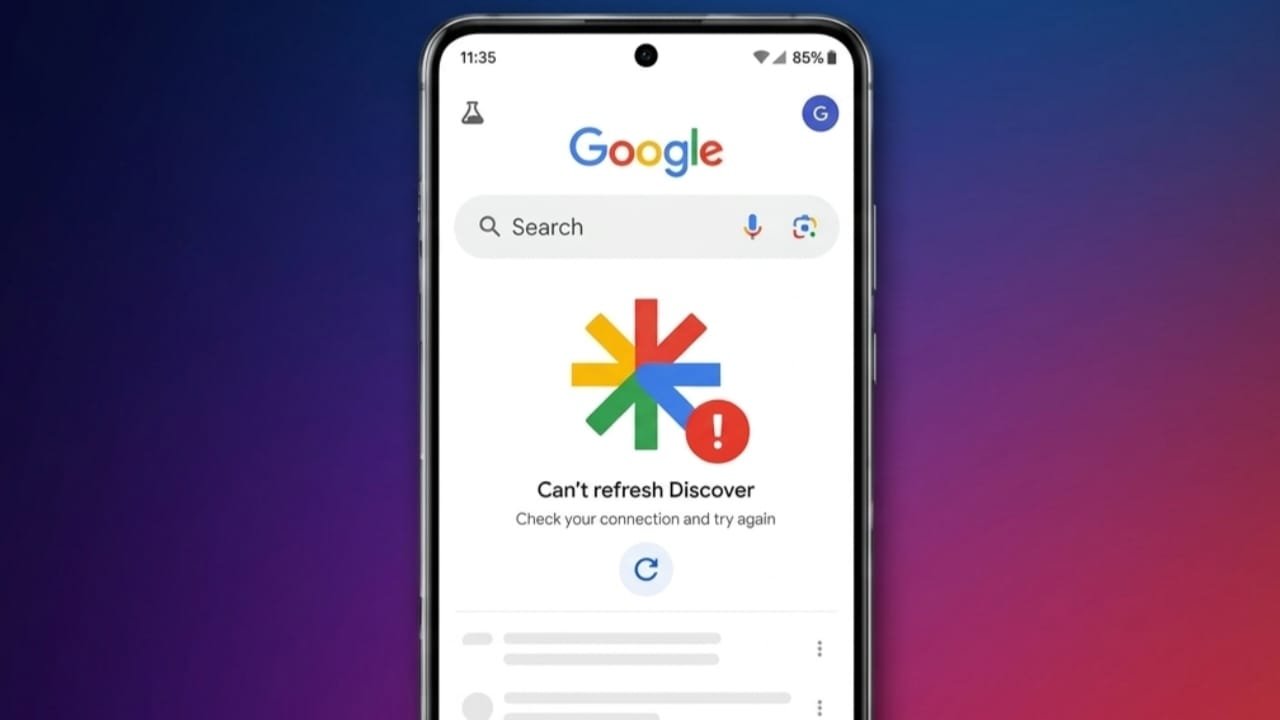
Google Discover helps you stay updated with news, sports, weather, and topics that match your interests. If the feed stops loading, doesn’t refresh, or starts showing irrelevant content, there are a few simple ways to fix the problem.
This guide explains the most effective solutions that work on most Android devices.
Advertisements
Also read: How to Pause Activity Rings on Apple Watch: Simple Ways to Stop Ring Progress
Quick Tips
- Restart your phone before trying anything else.
- Make sure Google Discover is turned on.
- Check if background data is enabled for the Google app.
- Clear the Google app cache.
- Keep Google apps updated.
- Reset app preferences if the issue continues.
1. Make Sure Google Discover Is Enabled
First, check whether Google Discover is active on your device.
- Swipe to the left-most Home screen.
- If you have a Samsung phone, you may see Samsung News instead of Google Discover.
- Open Samsung News, tap the three-dot menu, and select Add media page to Home screen.
- Choose Google Discover from the available options.
You can also check the Google app:
- Open the Google Chrome app.
- Go to Settings.
- Select General.
- Turn the Discover option off, then turn it back on.
On many Android phones, you can also press and hold an empty space on the Home screen, open Home settings, and confirm that Google Discover is enabled.
After making these changes, restart your phone and check if the feed starts working.
2. Clear the Google App Cache
Temporary files stored by the Google app can sometimes cause Discover to stop working.
Follow these steps:
- Open Settings.
- Go to Apps or App Management.
- Select the Google app.
- Open Storage.
- Tap Clear Cache.
If the issue remains, you can choose Clear Data. Keep in mind that this removes saved app data and cannot be undone.
3. Update Google Apps
Running an outdated version of the Google app may lead to bugs or performance issues.
- Open the Google Play Store.
- Check for updates for the Google app and Google Play Services.
- Install any available updates.
- Restart your phone after updating.
If updating does not help, reinstalling the Google app (where supported) may resolve the problem.
4. Enable Background Data
Google Discover needs background data to refresh content automatically.
To check this setting:
- Open Settings.
- Find the Google app.
- Open Mobile Data & Wi-Fi or a similar menu.
- Make sure Background Data is turned on.
Open Discover again to see if new stories appear.
5. Check Your Google Account
Sometimes, account-related settings can affect Discover.
- Open the Google app.
- Tap your profile picture.
- Select the account switch option.
- Try using Use without an account to see whether the feed loads correctly.
If Discover works, signing back into your account may solve the issue.
6. Improve Your Discover Feed
If Discover is showing content that doesn’t match your interests, you can personalize it.
- Tap the three-dot menu on stories you don’t like.
- Choose See less like this or Not interested.
- Block websites you no longer want to see.
- Tap the heart or save option on articles you enjoy.
- Manage your interests through your Google search history and activity.
Over time, Google will adjust your feed based on your preferences.
7. Reset App Preferences
If nothing else works, resetting app preferences can help restore default settings without deleting your personal files.
To do this:
- Open Settings.
- Go to System.
- Select Reset Options.
- Tap Reset App Preferences.
- Confirm the action.
This can fix problems caused by incorrect app settings.
Also read: How to Block Ads on Android: A Simple and Effective Guide
Final Thoughts
Google Discover problems are usually easy to fix. In many cases, restarting your phone, enabling Discover, clearing the cache, or updating the Google app is enough to restore normal operation.
If the issue continues, check your background data settings, review your Google account preferences, or reset app preferences. These steps can help get your Discover feed working again and improve the relevance of the content you see every day.

Abhi Rajput, founder of EarnAbhi.in, is a tech lover with 6+ years of experience in SEO, digital tools, and smartphone troubleshooting. He writes simple, clear, and useful guides to help people solve real tech problems.