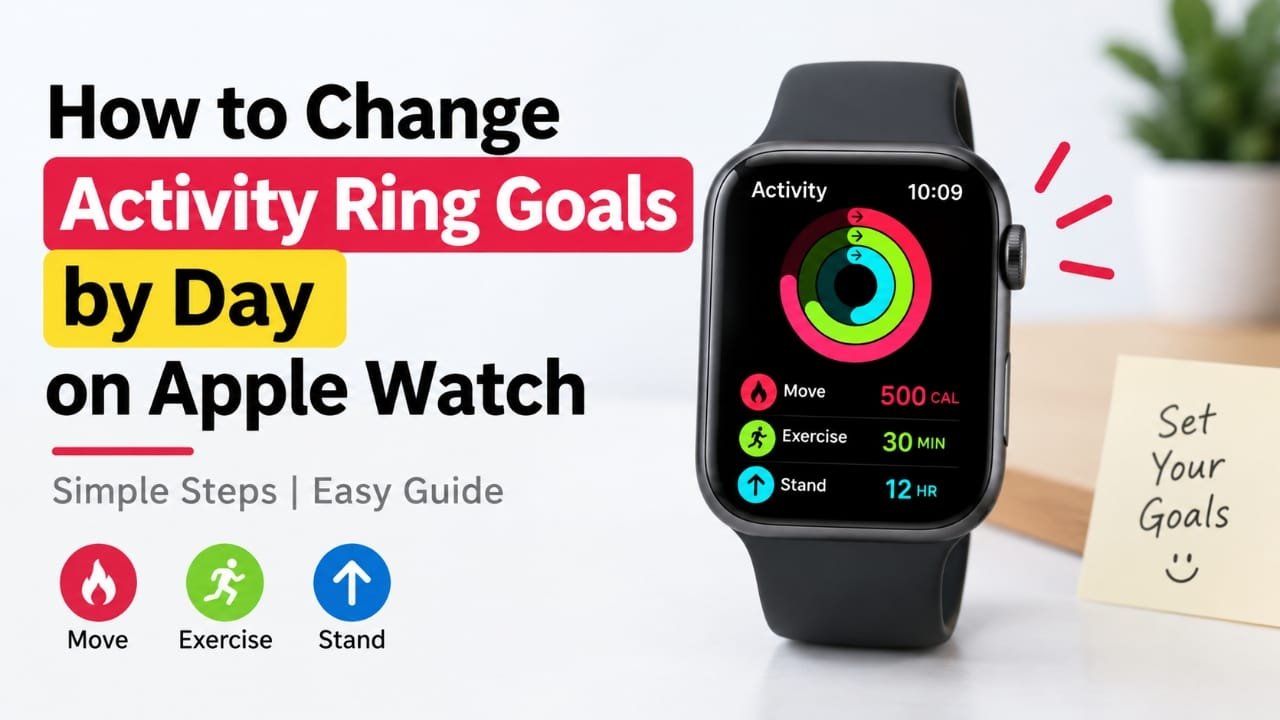
Apple Watch makes it easy to keep track of your daily activity, but your ideal target may not be the same every day. You might prefer a lower goal on a rest day and a higher target when you have a workout planned.
Advertisements
Fortunately, Apple lets you adjust the Activity Ring goals when needed. You can change your Move, Exercise, and Stand targets from your Apple Watch or, depending on your software version, through the Fitness app on your iPhone.
One thing to keep in mind is that Apple Watch does not provide a simple built-in schedule where you can assign a different set of Activity Ring goals to every day of the week automatically. If you want different targets for different days, you generally need to change them manually.
Also read: How to Put Your iPhone in Recovery Mode (All Models)
Quick Overview
The basic process is:
- Open the Activity or Fitness app.
- Go to your Activity Ring information.
- Find the option for changing your goals.
- Select the goal you want to adjust.
- Set the new target and save it.
- Repeat the process whenever you need a different target.
The exact names or location of some options can vary between watchOS and iOS versions.
How to Change Your Activity Ring Goals
Step 1: Open the Activity or Fitness App
If you are using your Apple Watch, open the Activity app and look at your Activity Rings.
On an iPhone paired with your watch, open the Fitness app and go to the area that displays your activity information.
The available options can look slightly different depending on your Apple software version.
Step 2: Find Your Activity Goals
Look for the section that displays your daily Activity Rings or activity details.
From here, you can access the settings related to your daily targets. If you cannot immediately find the goal controls, check the activity details or options associated with your rings.
Step 3: Select the Goal You Want to Change
Apple separates your activity into different targets. Depending on your setup, you can adjust:
- Move — your active calorie target
- Exercise — your daily exercise-minute target
- Stand — your daily standing target
You can change one goal without necessarily changing the others.
For example, if your Exercise target already works well for you but your Move target feels too demanding on a particular day, you can adjust the Move goal separately.
Step 4: Set Your New Target
Use the controls provided on the screen to increase or decrease the target.
Choose a number that fits your plans for that day. Once you are satisfied with the new target, confirm the change using the option shown on your device, such as Update or Done.
Your new target should then be reflected in your Activity information.
Can You Set Different Goals for Different Days?
This is where Apple Watch has an important limitation.
There is no straightforward built-in weekly schedule that lets you create something like:
- Monday: High target
- Tuesday: Medium target
- Wednesday: Low target
- Thursday: High target
- Friday: Medium target
- Saturday: Low target
- Sunday: Rest-day target
Instead, you generally have to change the goals manually when you want a different target.
For example, if you normally have a more active Monday, you could increase your goal that morning. Before a planned recovery day, you could lower it to something more suitable for your schedule.
This approach takes an extra moment, but it gives you control over the target without changing your previous activity records.
Changing Goals Directly on Apple Watch
Depending on your watchOS version, you may be able to change your goals directly from the Activity app on the watch.
This can be useful when you do not want to reach for your iPhone. Open the Activity app and look for the option related to changing goals. The exact menu and wording can vary between software versions.
If the option is not where you expect it to be, check that your Apple Watch is running a current version of watchOS.
What If You Cannot Find the Goal Settings?
Apple occasionally changes the layout and names of options when it updates iOS or watchOS. If the instructions on your device do not match what you see in a guide, there are a few things worth checking.
Check for software updates
Make sure your iPhone and Apple Watch are running supported, up-to-date software. Older versions can have different menus and controls.
Check the Activity or Fitness section
The goal controls are associated with your Activity Rings, so look through the activity summary rather than general Apple Watch settings.
Give the devices a moment to sync
If you change a goal on one device and do not immediately see the update on the other, wait briefly and check again.
Does Changing a Goal Delete Previous Activity?
No. Changing your current Activity Ring target does not normally remove your previous activity information.
Your earlier workouts and recorded activity remain separate from the target you set for the current day. You are simply changing what the watch considers your new daily goal.
So, if you lower your Move goal today, it does not rewrite your activity history.
Tips for Choosing Better Daily Goals
Your Activity Ring targets should make sense for your normal routine.
Match the goal to your schedule
A busy workout day and a quiet recovery day may not require identical targets. Adjusting your goal can make it better suited to what you actually plan to do.
Avoid making large changes unnecessarily
You do not have to make dramatic adjustments. Small changes can be enough when your normal schedule changes.
Do not treat the rings as a requirement
Activity Rings are designed to help you monitor your activity. Missing a target does not mean the day was unsuccessful.
Review your goals regularly
Your routine can change because of work, travel, holidays, workouts, or other commitments. Check your targets from time to time and adjust them when they no longer fit your schedule.
Frequently Asked Questions
Can Apple Watch automatically change my Activity Ring goals each day?
Apple Watch does not provide a simple built-in weekly schedule for assigning different Activity Ring targets to individual days. In most cases, different daily targets need to be changed manually.
Which Activity Ring goals can I change?
The main goals you can adjust are Move, Exercise, and Stand. The available controls can depend on your Apple Watch model and software version.
Will changing my goal remove my previous activity?
No. Changing a goal changes the target you are working toward. It does not normally erase previously recorded activity.
Also read: How to Restart an iPhone or iPad: Complete Guide for All Models
Final Thoughts
Changing Activity Ring goals on Apple Watch is useful when your daily routine is not always the same. You may want a more demanding target on an active day and a more manageable one when your schedule is lighter.
The important limitation is that Apple Watch does not offer a simple built-in system for automatically assigning a different Activity Ring goal to every day of the week. For now, manual changes are the practical option when you want your targets to vary.
Choose goals that fit your actual routine, make changes when your schedule calls for them, and use the Activity Rings as a way to understand your activity rather than as a reason to make every day identical.

Abhi Rajput, founder of EarnAbhi.in, is a tech lover with 6+ years of experience in SEO, digital tools, and smartphone troubleshooting. He writes simple, clear, and useful guides to help people solve real tech problems.
Advertisements