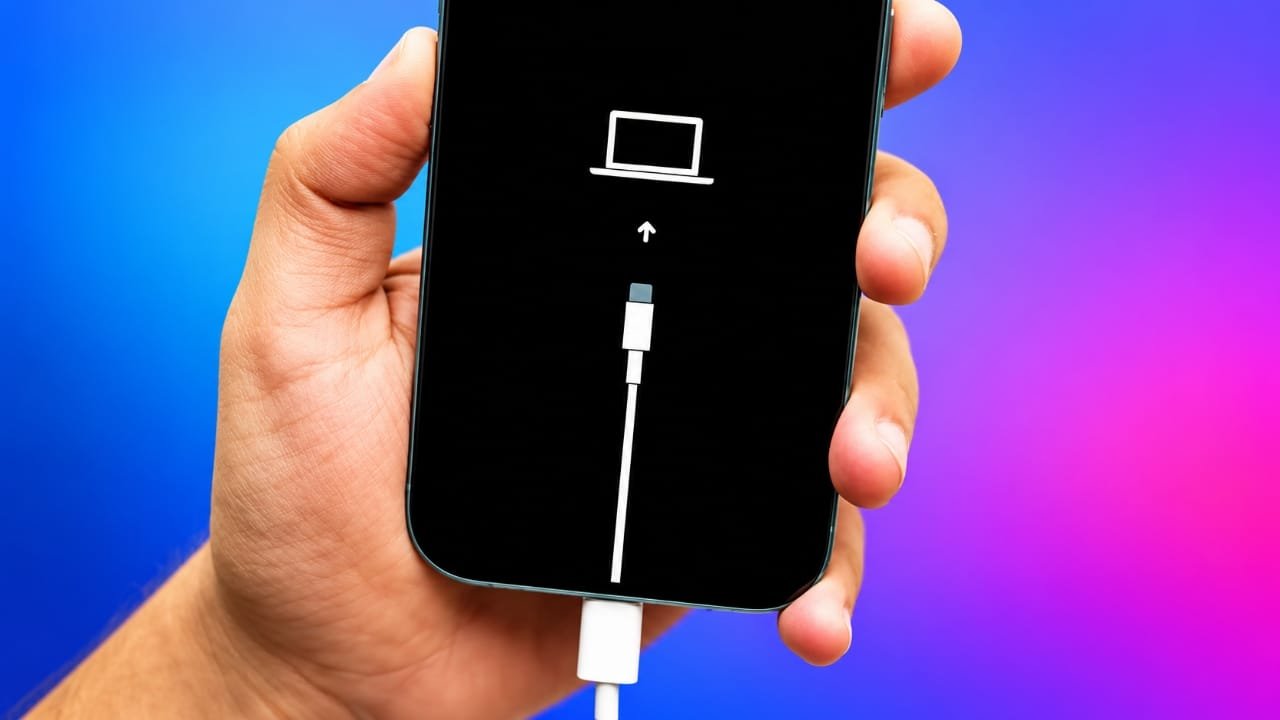
If your iPhone is stuck on the Apple logo, keeps restarting, or stops responding after an update, Recovery Mode can help you troubleshoot the problem.
Advertisements
Recovery Mode allows a Mac or Windows PC to communicate with an iPhone that cannot start normally. From there, you can try updating iOS or, if necessary, restoring the device.
The button combination used to enter Recovery Mode depends on your iPhone model. Here is a complete guide for different iPhone generations.
Also read: How to Turn Off Voice Access in Windows 11: Quick and Easy Guide
What Is Recovery Mode on an iPhone?
Recovery Mode is a special troubleshooting state built into iOS. When an iPhone enters this mode, it does not start the normal iOS interface.
Instead, the screen displays an image showing a cable pointing toward a computer. Your Mac or Windows PC can then recognize the device and offer options to update or restore it.
You will generally see two choices:
- Update: Attempts to reinstall or update iOS while keeping your personal data.
- Restore: Erases the iPhone and reinstalls iOS. This should be considered only when other troubleshooting steps have not solved the problem.
If you have important data on the iPhone, try the Update option first when it is available.
When Should You Use Recovery Mode?
Recovery Mode is mainly useful when your iPhone cannot start normally or your computer cannot communicate with it in the usual way.
You may want to try it if:
- Your iPhone remains stuck on the Apple logo.
- The device repeatedly restarts and never reaches the Home Screen.
- An iOS update failed or became interrupted.
- The iPhone does not respond normally.
- Your computer does not recognize the iPhone.
- You need to restore an iPhone that you cannot unlock because you forgot its passcode.
Recovery Mode is not something you need to use for ordinary problems. If your iPhone is working normally, there is usually no reason to enter it.
Before You Start
Before entering Recovery Mode, keep a few things in mind:
- If your iPhone still works, create a backup before making major changes.
- Use a reliable USB cable to connect the iPhone to your computer.
- On a Mac, use Finder. Older versions of macOS may use iTunes.
- On a Windows PC, use the current Apple software available for managing your iPhone.
- Keep your computer connected to the internet because it may need to download iOS.
Most importantly, remember that restoring an iPhone erases its contents. If you have a recent backup, you can use it later during the setup process.
How to Put iPhone 8 or Later Into Recovery Mode
This method applies to iPhone models with Face ID and later iPhone models that use the same button sequence.
Step 1: Connect the iPhone to your computer
Connect your iPhone to your Mac or Windows PC using a suitable USB cable.
Open Finder on a Mac. On a Windows PC, open the Apple device-management software or iTunes, depending on your setup.
Step 2: Press Volume Up
Quickly press and release the Volume Up button.
Step 3: Press Volume Down
Immediately press and release the Volume Down button.
Step 4: Hold the Side button
Press and continue holding the Side button.
You may first see the power-off slider. Ignore it and keep holding the button.
The screen may go black and show the Apple logo. Continue holding the Side button.
Step 5: Wait for the Recovery Mode screen
Do not release the button until the screen shows the recovery screen with a cable pointing toward a computer.
Your iPhone is now in Recovery Mode.
Step 6: Use your computer
Your computer should detect the iPhone and display an option to Update or Restore it.
If you want to try fixing the software without intentionally erasing your personal data, choose Update first.
If the update does not solve the problem, you may need to use Restore.
How to Put iPhone 7 and iPhone 7 Plus Into Recovery Mode
The button combination is different on the iPhone 7 series.
- Connect the iPhone to your Mac or Windows PC.
- Open Finder, iTunes, or the appropriate Apple device-management software.
- Press and hold the Side button and Volume Down button at the same time.
- Keep holding both buttons even when the Apple logo appears.
- Release the buttons only when the Recovery Mode screen appears.
Once the recovery screen is visible, your computer should detect the iPhone and provide the available recovery options.
How to Put iPhone 6s or Earlier Into Recovery Mode
Older iPhone models use the Home button for this process.
- Connect the iPhone to your computer.
- Open Finder or iTunes, depending on your computer and software version.
- Press and hold the Home button and the Side or Top button together.
- Continue holding both buttons.
- Keep holding them when the Apple logo appears.
- Release the buttons when the Recovery Mode screen appears.
Your computer should then recognize the iPhone.
How to Put an iPad With a Home Button Into Recovery Mode
If you are also troubleshooting an older iPad with a physical Home button, the process is similar to older iPhones.
Connect the iPad to your computer and then press and hold the Home button together with the Top or Side button.
Keep holding the buttons until the Recovery Mode screen appears.
How to Put an iPad Without a Home Button Into Recovery Mode
iPads without a Home button use a different button sequence.
- Connect the iPad to your computer.
- Quickly press and release the volume button closest to the Top button.
- Quickly press and release the other volume button.
- Press and hold the Top button.
- Keep holding it until the Recovery Mode screen appears.
Once the recovery screen is displayed, you can use your computer to continue troubleshooting.
What Should You Choose: Update or Restore?
When your computer detects an iPhone in Recovery Mode, you may be given two options.
Update
The Update option attempts to reinstall or update iOS without deliberately erasing your personal information.
It is generally the first option to try when you want to troubleshoot a software problem while keeping your data.
However, no recovery method can guarantee that data will always remain intact. If the information on your iPhone is important, having a current backup is strongly recommended.
Restore
The Restore option erases the iPhone and installs a fresh copy of iOS.
This can be necessary when an update does not solve the problem or when the device needs to be completely reset.
Afterward, you can set up the iPhone again and restore your information from a suitable backup if one is available.
What If the Software Download Takes Too Long?
Your computer may need to download the iOS software before it can complete the update or restore process.
If the download takes a long time, the iPhone may leave Recovery Mode.
If that happens, allow the computer to finish downloading the required software. After the download is complete, put the iPhone back into Recovery Mode and try the process again.
Keep the iPhone connected to the computer while following the recovery instructions.
How to Exit Recovery Mode Without Restoring
If you entered Recovery Mode by mistake and do not want to update or restore the iPhone, you can usually exit it by performing a force restart.
For newer iPhone models:
- Quickly press and release Volume Up.
- Quickly press and release Volume Down.
- Press and hold the Side button.
- Continue holding it until the Apple logo appears.
The exact force-restart procedure varies by model.
Exiting Recovery Mode does not itself repair the underlying software problem. It simply allows the iPhone to attempt a normal startup again.
What If the iPhone Keeps Returning to Recovery Mode?
If your iPhone repeatedly returns to the Recovery Mode screen, there may be a software problem that a normal restart cannot resolve.
First, make sure the USB cable and computer connection are reliable and try the update option again if it is available.
If the iPhone still cannot start normally, a restore may be required. Remember that restoring erases the device.
If you cannot resolve the problem through the available recovery options, contacting Apple Support or an authorized service provider is the safer next step, particularly if the device may have a hardware problem.
Frequently Asked Questions
Does Recovery Mode delete everything on an iPhone?
Simply entering Recovery Mode does not erase your data. However, choosing Restore erases the iPhone. If possible, make a backup before using recovery tools.
Can I use Recovery Mode without a computer?
Recovery Mode is designed to work with a Mac or Windows PC. You normally need a computer to complete the update or restore process.
Will Recovery Mode fix every iPhone problem?
No. Recovery Mode is mainly intended for software and startup problems. If the issue is caused by damaged hardware, a software restore may not fix it.
Also read: Apple iPhone Duo Wallpapers: Download Official Wallpapers in 4K
Final Thoughts
Recovery Mode can be useful when an iPhone refuses to start normally, becomes stuck during startup, or runs into certain software problems.
The button combination depends on your iPhone model, so make sure you follow the instructions for the correct generation.
If your data is important, always consider backing up the iPhone before performing major troubleshooting. And remember: Update is generally the less destructive option, while Restore erases the device.
If Recovery Mode does not resolve the problem, professional Apple support may be the best option, especially when a hardware fault could be involved.

Abhi Rajput, founder of EarnAbhi.in, is a tech lover with 6+ years of experience in SEO, digital tools, and smartphone troubleshooting. He writes simple, clear, and useful guides to help people solve real tech problems.
Advertisements