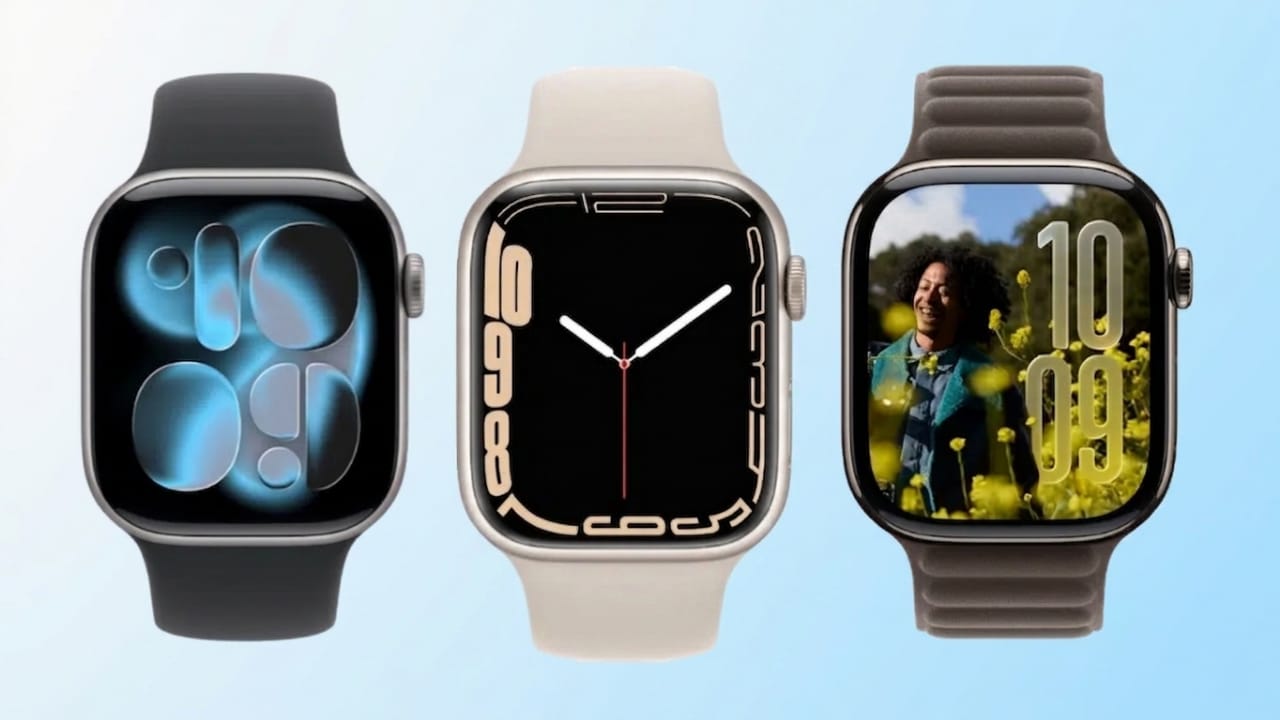
Changing your Apple Watch face is one of the easiest ways to make your watch feel more personal and useful. Apple Watch offers a variety of face styles, colors, and built-in features that help you match your watch to your daily routine.
Advertisements
Whether you want a simple design, fitness-focused layout, or quick access to important information, customizing watch faces can improve both appearance and convenience.
Also read: Google Expands Gemini AI With New 3.5 Models and Omni Video Technology at I/O 2026
Why Customize Apple Watch Faces?
Apple Watch faces are more than just visual themes. They can help you access useful tools quickly and organize important details on your wrist.
Benefits of changing watch faces include:
- Personalizing the watch to match your style
- Adding useful complications like weather, calendar, or activity tracking
- Improving daily productivity with quick shortcuts
- Switching between different layouts for work, fitness, or casual use
You can change watch faces directly from your Apple Watch or through your iPhone.
Change Apple Watch Faces Directly on Apple Watch
You can edit or switch watch faces without using your iPhone.
1. Open Watch Face Selection
Follow these steps:
- Press the Digital Crown to return to the main watch face.
- Touch and hold the watch face until editing options appear.
- Swipe left or right to browse saved watch faces.
- Tap Edit to customize the selected face.
Customize Watch Face Style
Depending on the face you choose, different customization options may appear.
Common settings may include:
- Font or number style
- Dial appearance
- Layout options
- Time scale settings
- Visual themes
Some watch faces support many adjustments, while others may offer only limited changes.
Change Watch Face Colors
Many Apple Watch faces allow color adjustments.
To change colors:
- Open the selected watch face in Edit mode.
- Swipe through the available color options.
- Select the color you prefer.
- Press the Digital Crown to save changes.
Keep in mind that not every watch face includes color customization.
Change Apple Watch Faces Using iPhone
If you prefer a bigger screen, you can customize watch faces through your iPhone.
Advertisements
Open the Watch App
- Open the Watch app on your iPhone.
- Tap My Watch.
- Select a watch face under My Faces.
- Edit available settings such as colors, layout, and complications.
Changes usually sync to your Apple Watch automatically.
Also read: YouTube Expands AI Deepfake Detection Tool for More Adult Creators
Explore Face Gallery
Apple provides several built-in watch face options.
Popular categories include:
- Activity-focused faces
- Siri suggestions
- Artistic styles
- Character-themed designs
- Minimal and classic layouts
- Motion-based visual effects
You can explore these from the Face Gallery inside the Watch app.
Save Customized Watch Faces
After editing a watch face, you can save it for later use.
To save a new face:
- Tap Add after customizing.
- The new face will appear under My Faces.
- It stays available for future use unless removed.
This makes it easy to switch between different designs whenever needed.
Rearrange Watch Faces
If you use multiple watch faces, you can organize them in your preferred order.
Steps:
- Open the Watch app.
- Go to My Watch.
- Tap Edit in the My Faces section.
- Drag and move faces into your preferred order.
- Tap Done to save changes.
Remove Unwanted Watch Faces
To delete watch faces you no longer use:
- Open My Faces in the Watch app.
- Tap the red minus icon next to the face.
- Select Remove.
The deleted watch face will no longer appear in your collection.
Also read: Apple May Relaunch Siri With Privacy-Focused AI Features at WWDC
Final Thoughts
Apple Watch face customization is simple and useful. By changing colors, layouts, and complications, you can make your watch better suited for your style and daily tasks. Whether you customize directly on the watch or through your iPhone, switching faces helps create a more practical and personalized smartwatch experience.

Abhi Rajput, founder of EarnAbhi.in, is a tech lover with 6+ years of experience in SEO, digital tools, and smartphone troubleshooting. He writes simple, clear, and useful guides to help people solve real tech problems.