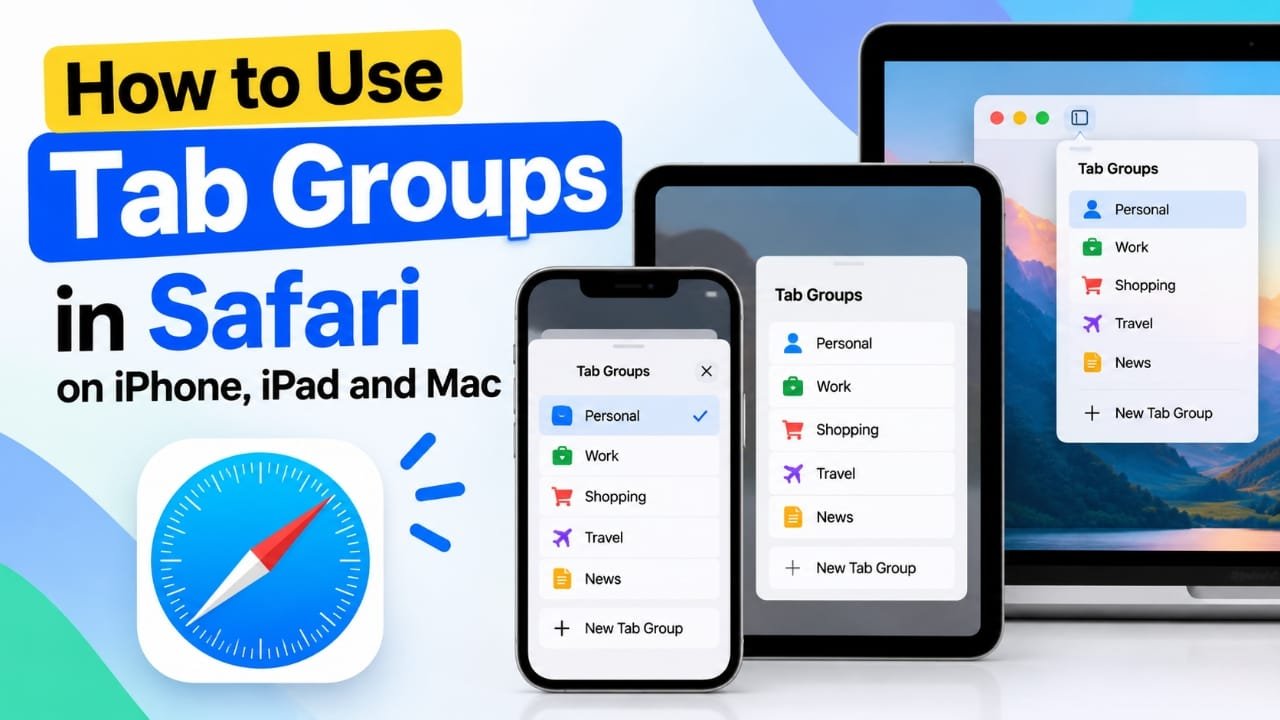
If you often keep dozens of websites open in Safari, finding the right tab can quickly become frustrating. Safari’s Tab Groups feature gives you a simple way to organize related websites together.
Advertisements
For example, you can create separate groups for work, shopping, travel research, news, or personal browsing. Once your tabs are organized, you can switch between groups without searching through a long list of open pages.
Here’s how to create and manage Safari Tab Groups on iPhone, iPad, and Mac.
Also read: How to Fix the Weather App Not Working on iPhone or iPad
How to Create a Tab Group on iPhone or iPad
You can create a new group with an empty tab or use your currently open tabs.
- Open Safari on your iPhone or iPad.
- Tap the Tabs button, which looks like two overlapping squares.
- Tap the tab count or the Tab Group name shown near the bottom of the screen.
- Choose New Empty Tab Group if you want to start with a blank group.
- If you want to organize your existing tabs, select New Tab Group from [number] Tabs.
- Enter a name for the group.
- Tap OK or Save, depending on your iOS or iPadOS version.
You can now open additional websites inside that Tab Group.
Quickly Switch Between Tabs
When you have multiple tabs open, you can swipe left or right across the address bar to move between them.
To switch to a completely different Tab Group, open the tab overview and select the group you want.
How to Move a Safari Tab to Another Tab Group
If a webpage is in the wrong group, you don’t need to close it and open it again.
- Open Safari and enter the tab overview.
- Find the webpage you want to move.
- Press and hold its tab preview.
- Select Move to Tab Group.
- Choose the Tab Group where you want the webpage to go.
Selecting Start Page will move the tab out of a Tab Group and back into your regular Safari tabs.
How to Organize Tabs Inside a Tab Group
Safari can automatically arrange tabs to make a large collection easier to browse.
- Open the tab overview.
- Press and hold any tab.
- Select Arrange Tabs By.
- Choose either Title or Website.
This can be useful when you have many webpages open in the same group.
How to Close Tabs in a Safari Tab Group
You can close all the tabs in a group when you no longer need them.
Open one of the tabs from the group and press and hold the Tabs button. Then select the option to close all tabs in that group.
Another option is to open the tab overview, press and hold Done, and choose the option to close all tabs.
If you only want to keep one webpage open, press and hold its tab preview and select Close Other Tabs.
How to Rename a Safari Tab Group
You can change a group’s name whenever you want.
- Open Safari’s tab overview.
- Tap the current Tab Group name.
- Find the group you want to rename.
- Press and hold it.
- Select Rename.
- Enter the new name.
- Tap OK or Save.
You can also swipe left on a Tab Group name and use the edit option on supported versions of iOS and iPadOS.
How to Share a Tab Group
Safari also lets you share the webpages collected in a Tab Group.
- Open Safari.
- Open the tab overview.
- Select the Tab Group you want to share.
- Tap the Share button.
- Choose the app or contact you want to share it with.
The available sharing options depend on the apps installed on your device.
How to Pin Tabs in Safari on iPhone
If you frequently use a particular webpage, pinning its tab can make it easier to keep track of.
On supported iOS versions:
- Open Safari and go to the tab overview.
- Press and hold the tab you want to keep handy.
- Select Pin Tab.
The pinned tab remains available in Safari so you can quickly access it later.
How to Add Tab Group Favorites
Safari can also display your favorite websites on a Tab Group’s Start Page.
- Open the Tab Group.
- Open its Start Page.
- Scroll down and tap Edit.
- Turn on Tab Group Favorites.
- Close the customization screen.
Your selected favorites can then appear when you open the Start Page for that Tab Group.
How to Delete a Tab Group on iPhone or iPad
When you no longer need a Tab Group, you can remove it from Safari.
- Open Safari’s tab overview.
- Tap the current Tab Group name.
- Press and hold the group you want to remove.
- Select Delete.
You can also swipe left on the Tab Group and tap the trash icon.
Keep in mind: deleting a Tab Group also closes the tabs stored inside that group.
How to Use Tab Groups in Safari on Mac
Tab Groups work in a similar way on Mac, although the controls are slightly different.
How to Create a Tab Group on Mac
- Open Safari.
- Click the Sidebar button near the top-left corner.
- Select New Empty Tab Group to start with a blank group.
If you already have several tabs open, you can choose New Tab Group with [number] Tabs to place those existing tabs into a new group.
Give the group a name so you can identify it easily later.
How to Rename a Tab Group on Mac
To change the name of a group:
- Open Safari’s Sidebar.
- Right-click the Tab Group.
- Select Rename.
- Type the new name.
- Press Return.
Some newer macOS versions may provide the rename option through a menu next to the Tab Group.
How to Move a Tab Between Tab Groups on Mac
You can move an existing webpage to another group without reopening it.
- Right-click the tab.
- Select Move to Tab Group.
- Choose the destination group.
If you select Start Page, the tab will be moved outside the existing Tab Groups.
How to Change the Order of Tab Groups
If you have several groups, you can arrange them in an order that makes sense to you.
- Open Safari’s Sidebar.
- Find the Tab Group you want to move.
- Click and hold it.
- Drag it up or down.
- Release it in the desired position.
How to See All Tabs in a Tab Group
Safari can display the webpages in a group together in a visual overview.
- Open the Safari Sidebar.
- Right-click the Tab Group.
- Select Show Tab Overview.
Depending on your macOS version, you may also see a grid-style button that opens the tab overview.
This view is particularly useful when a group contains many webpages.
How to Delete a Tab Group on Mac
To remove a Tab Group:
- Open Safari’s Sidebar.
- Right-click the Tab Group.
- Select Delete.
Deleting the group also closes the tabs that belong to it, so make sure you no longer need those webpages before removing the group.
Also read: How to Back Up iPhone 16: Easy Ways to Protect Your Data
Final Thoughts
Safari Tab Groups are useful when you regularly work with multiple webpages at the same time. Instead of keeping everything in one long list of tabs, you can separate websites into groups based on what you’re doing.
You can create groups, move tabs between them, rename them, arrange their order, and remove groups when they are no longer needed. The exact names or location of some options can vary slightly depending on your iOS, iPadOS, or macOS version.
Once you start using Tab Groups, keeping Safari organized becomes much easier, especially when you frequently switch between different types of browsing.

Abhi Rajput, founder of EarnAbhi.in, is a tech lover with 6+ years of experience in SEO, digital tools, and smartphone troubleshooting. He writes simple, clear, and useful guides to help people solve real tech problems.
Advertisements