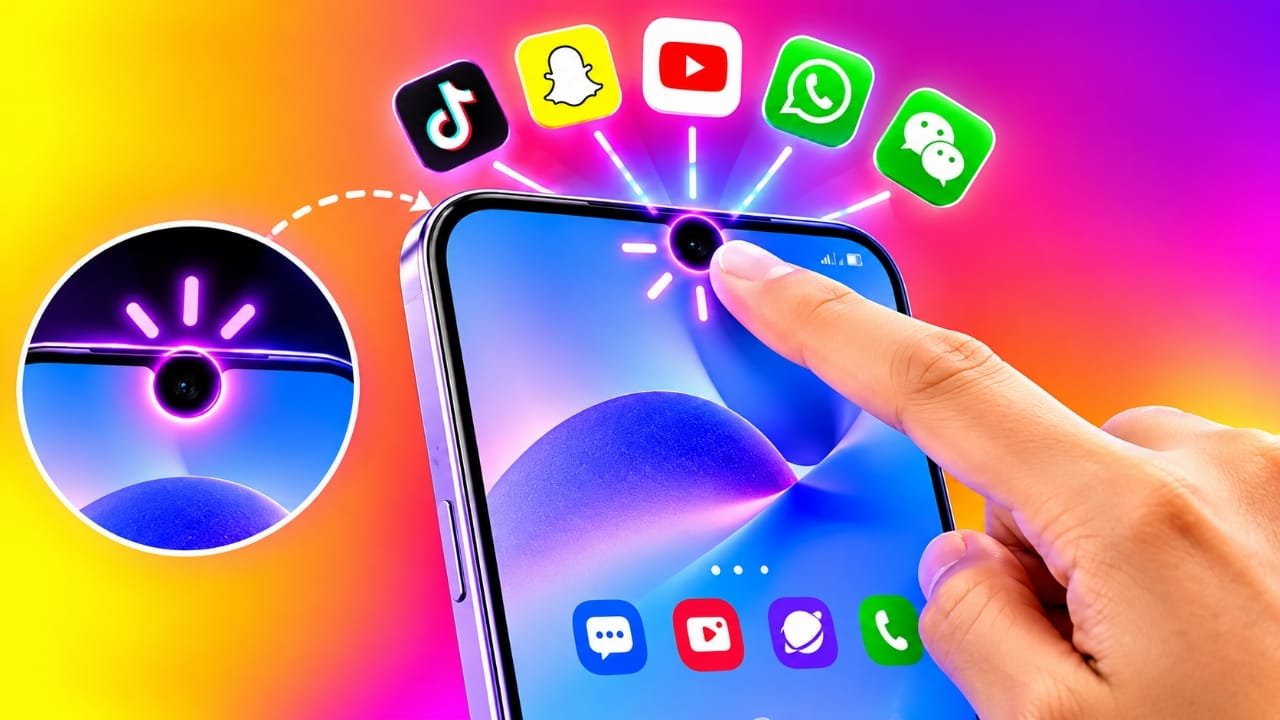
The small camera cutout at the top of a smartphone display usually has one simple purpose: housing the front camera. But what if you could use that area for something more?
Advertisements
Notch Launcher is an Android customization app designed to turn the notch or punch-hole area into a shortcut zone. Depending on the phone and the features supported by the app, users can assign gestures such as tapping, swiping, or long-pressing to open apps and perform certain actions.
This can be useful for people who frequently use the same apps and want another way to access them without repeatedly searching through the home screen or app drawer.
Also read: 53 Themes, Zero Clutter: A Modern Launcher for a Cleaner Android Home Screen
What Is Notch Launcher?
Notch Launcher is an Android utility focused on gesture-based shortcuts around the phone’s camera cutout.
Normally, opening an app requires finding its icon on the home screen, browsing the app drawer, or using Android’s search feature. A gesture-based shortcut can provide another option.
For example, a user could potentially set a tap to open the camera, a swipe to launch a calculator, and a long press for another frequently used shortcut.
The exact actions available can depend on the version of the app, Android version, device manufacturer, and permissions granted to the application.
Key Features of Notch Launcher
1. Use the Camera Cutout as a Gesture Area
The main idea behind Notch Launcher is to make the area around the camera cutout useful for shortcuts.
Instead of treating the notch or punch-hole as nothing more than a display cutout, the app can use it as a location for gesture-based controls.
This may allow users to access selected apps or supported actions without returning to the home screen.
2. Tap Gestures
A simple tap can be assigned to an action supported by the app.
Depending on the available options, examples may include:
- Opening an app
- Launching the camera
- Opening a calculator
- Accessing a supported shortcut
- Performing another available quick action
This can be convenient when you regularly open the same application throughout the day.
3. Swipe Gestures
Notch Launcher can also provide swipe-based controls, depending on its current feature set and device compatibility.
For example, you might assign a particular swipe gesture to an app you use frequently. This gives you another way to access it without looking through multiple pages of icons.
4. Long-Press Actions
A long press can provide another shortcut option where supported.
For example, you could use one gesture for an app and reserve a long press for a different action. This allows multiple shortcuts to be associated with the same general area.
The available gesture options may vary depending on the app version and Android device.
5. Quick Access to Frequently Used Apps
One of the main reasons to use a gesture launcher is convenience.
For example, a setup could look like this:
Tap the notch → Camera
Swipe → WhatsApp
Long press → Calculator
This gives commonly used apps their own gesture shortcuts. You can change these assignments based on the apps you use most often.
6. Shortcut Support
Notch Launcher may support more than simply opening applications. Some Android shortcuts or system actions may also be available.
However, the exact list should not be assumed to be the same on every phone. Android versions, manufacturer software, permissions, and the current version of Notch Launcher can all affect which functions are available.
How to Set Up Notch Launcher
The setup process can vary slightly depending on the version of the app and your Android phone. A typical setup may look like this.
Step 1: Install the App
Get the current version of Notch Launcher from a trusted source.
If you are installing an APK from outside an official app store, check the source carefully. Avoid downloading APK files from unfamiliar websites simply because they promise a modified or premium version.
Step 2: Open Notch Launcher
Launch the app after installation and look through its initial setup options.
The app should show you the controls and settings available on your device.
Step 3: Review the Required Permissions
The application may request permissions needed for gesture detection or other functions.
Before accepting a permission, check what access is being requested and why it is needed. You can also review the permission information through Android’s Settings.
Do not grant permissions that you are uncomfortable with or that do not appear necessary for the feature you want to use.
Step 4: Choose a Gesture
Select the gesture you want to configure.
Depending on the version of the app, this could include options such as:
- Tap
- Swipe
- Long press
Step 5: Assign an Action
Choose the app or supported action that should respond to the gesture.
For example:
Tap → Camera
Swipe → Chrome
Long press → Calculator
After setting everything up, test each gesture to make sure it behaves as expected.
Who Might Find Notch Launcher Useful?
Notch Launcher may appeal to Android users who enjoy experimenting with customization and alternative ways of accessing apps.
It can be worth trying if you:
- Frequently use the same few apps
- Like gesture-based controls
- Want additional shortcuts
- Prefer a less crowded home screen
- Enjoy customizing your Android phone
- Like experimenting with small utility apps
It is not necessary for normal Android use, but it can provide an additional way to interact with your phone.
Benefits of Using Notch Launcher
The interesting part of Notch Launcher is its approach to an area that normally has limited interaction.
Some potential advantages include:
Faster Access
A configured gesture can provide a quick way to open a frequently used app or supported action.
Fewer Home Screen Icons
If you use gesture shortcuts for certain apps, you may not need to keep every frequently used application on the home screen.
More Customization
Users can choose shortcuts according to their own habits, where the app and device support those options.
Alternative Navigation
Some people simply prefer gestures over searching for icons. Notch Launcher provides another navigation method to experiment with.
A Different Smartphone Experience
Using the camera cutout as a shortcut area is an unusual customization idea. It can make the phone feel a little different from a standard Android setup.
Things to Keep in Mind
Notch Launcher may not behave identically on every Android phone.
The position and shape of camera cutouts differ between devices. Some phones have a centered punch-hole, while others use a different camera placement or display design.
Android versions and manufacturer interfaces can also change how apps interact with the display and system.
Special permissions may be required for certain features. Depending on how the app works, background activity or accessibility-related functionality could also affect resource usage.
For these reasons, it is a good idea to test the app on your specific device rather than assuming that every feature will work exactly as shown on another phone.
Does Notch Launcher Use Extra Battery?
Battery usage depends on how the app detects gestures and whether it needs to remain active in the background.
If the application continuously runs a service to detect gestures, it could use some additional system resources. However, the actual impact can vary considerably between phones.
If you notice unusual battery drain after installing the app, check Android’s battery usage section to see how much power the application is consuming.
Privacy and Permission Considerations
Permissions are particularly important with customization and gesture applications.
Before granting access, check what the app is requesting and understand how that permission is being used.
For example, if the application requests accessibility access, overlay permissions, or other special access, read the explanation carefully before enabling it.
You should also review the developer information and privacy policy when available.
A simple rule is useful here: only provide permissions that you understand and are comfortable granting.
Will Notch Launcher Work on Every Android Phone?
There is no reason to assume that every Android smartphone will offer the same experience.
Compatibility can depend on several factors, including:
- Android version
- Phone manufacturer
- Manufacturer’s custom Android interface
- Camera cutout position
- Display design
- Available system permissions
- Current version of Notch Launcher
Therefore, check the app’s current compatibility information before installing it, especially if you are using an unusual display layout or an older Android version.
Example of Everyday Use
Imagine that you regularly use three apps: Camera, WhatsApp, and Calculator.
Instead of placing all three on your home screen, you could try setting up different gestures:
Tap → Camera
Swipe → WhatsApp
Long press → Calculator
Once configured, you can use those gestures to access the assigned apps.
Whether this setup feels faster will depend on your personal habits. Some users may find it convenient, while others may prefer traditional app icons.
Is Notch Launcher Safe to Use?
An app should not be considered safe or unsafe based only on its name.
Before installing Notch Launcher, look at important details such as the developer, download source, requested permissions, privacy information, and user feedback.
If you download an APK, be especially careful about the website providing the file. Unknown APK sources can carry additional security risks.
Using a trusted source and checking permissions before installation is a safer approach.
Official Play Store App Link
Also read: How to Make Your Android Phone Look Like a Windows 11 PC
Final Thoughts
Notch Launcher takes an interesting approach to Android customization by using the area around a phone’s camera cutout for gesture-based shortcuts.
Instead of relying only on home-screen icons and the app drawer, users may be able to assign gestures such as taps, swipes, or long presses to frequently used apps and supported actions.
Its usefulness will depend on your phone, Android version, the current capabilities of the app, and how comfortable you are with gesture controls.
Before using it, check compatibility and carefully review any special permissions it requests. If everything works properly on your device, the app can provide a different and potentially convenient way to access your favorite shortcuts.
Frequently Asked Questions
What is Notch Launcher?
Notch Launcher is an Android customization utility designed to use the area around a phone’s camera notch or punch-hole for gesture-based shortcuts and app access.
What can I do with Notch Launcher?
Depending on the version of the app and your device, you may be able to use gestures such as tapping, swiping, or long pressing to open apps or perform supported actions.
Does Notch Launcher work on every Android phone?
Not necessarily. Compatibility can vary depending on the Android version, manufacturer interface, display design, camera cutout, and available permissions.

Abhi Rajput, founder of EarnAbhi.in, is a tech lover with 6+ years of experience in SEO, digital tools, and smartphone troubleshooting. He writes simple, clear, and useful guides to help people solve real tech problems.
Advertisements