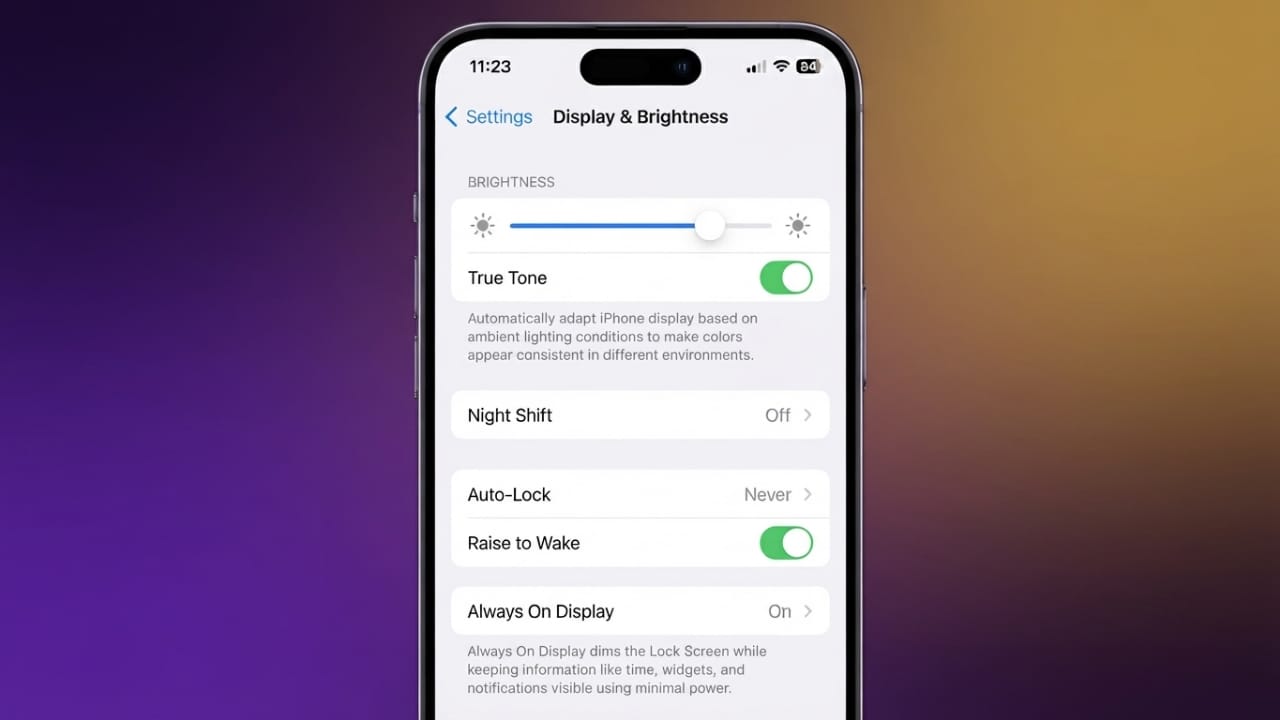
Does your iPhone screen suddenly become dim even when you haven’t changed the brightness? This can be annoying, especially when you’re reading messages, watching videos, or using your phone outdoors.
Advertisements
Fortunately, there are several settings you can check to stop unwanted screen dimming. This guide explains the most common reasons and how to fix them.
Also read: How to Create and Remove Multiple WhatsApp Accounts on iPhone
Key Highlights
- Turn off Auto-Brightness if you want full control over screen brightness.
- Disable True Tone, Night Shift, and Attention-Aware Features if they cause unwanted changes.
- Keep your iPhone from overheating, as high temperatures can force the display to dim.
- Update iOS and monitor your battery health for the best performance.
1. Turn Off Auto-Brightness
Auto-Brightness adjusts your screen based on the surrounding light. While it can save battery and make the display more comfortable to view, it doesn’t always work perfectly. Sometimes it may reduce the brightness even when you don’t want it to.
To disable Auto-Brightness:
- Open Settings.
- Tap Accessibility.
- Select Display & Text Size.
- Scroll to the bottom.
- Turn Auto-Brightness off.
Once disabled, your iPhone will no longer adjust the brightness automatically. You can change it manually whenever needed.
To adjust brightness manually:
- Open Control Center.
- Swipe down from the top-right corner of the screen.
- Drag the brightness slider up or down.
Keep in mind that using higher brightness levels may reduce battery life.
2. Turn Off True Tone and Night Shift
If Auto-Brightness is already off but your screen still looks darker than expected, other display features may be responsible.
Disable True Tone
True Tone automatically adjusts the display’s color and warmth according to the lighting around you. While many people like the natural appearance, others prefer a consistent display.
To turn it off:
- Open Settings.
- Tap Display & Brightness.
- Switch True Tone off.
You can also open Control Center, press and hold the brightness slider, and disable True Tone from there.
Disable Night Shift
Night Shift makes the screen warmer during certain hours, which can sometimes make it appear dimmer.
To disable it:
- Open Settings.
- Tap Display & Brightness.
- Select Night Shift.
- Turn it off or remove the schedule.
3. Disable Attention-Aware Features
On iPhones with Face ID, Attention-Aware Features use the front camera to detect whether you’re looking at the screen. Depending on the situation, this can affect display behavior.
Advertisements
To disable this feature:
- Open Settings.
- Tap Accessibility.
- Select Face ID & Attention.
- Turn Attention-Aware Features off.
- Enter your passcode if prompted.
After disabling it, your iPhone should stop making certain automatic display adjustments based on your attention.
4. Prevent Your iPhone from Overheating
Sometimes screen dimming is completely normal and cannot be turned off. When an iPhone gets too hot, it automatically lowers the screen brightness to help protect its internal components.
Your device may overheat if you:
- Use it in direct sunlight for a long time.
- Leave it inside a parked car.
- Play graphics-intensive games for extended periods.
- Run several demanding apps at the same time.
If your iPhone feels hot:
- Move it to a cooler place.
- Remove it from direct sunlight.
- Pause heavy tasks until it cools down.
Apple recommends using the iPhone in temperatures between 0°C and 35°C for normal operation.
5. Check Battery Health
A worn-out battery can sometimes affect your iPhone’s overall performance.
To check battery health:
- Open Settings.
- Tap Battery.
- Select Battery Health.
If the battery condition is significantly degraded, consider contacting Apple or an authorized service provider to learn about replacement options.
6. Keep iOS Updated
Software updates often include bug fixes and performance improvements that may resolve display-related issues.
To update your iPhone:
- Open Settings.
- Tap General.
- Select Software Update.
- Install any available updates.
Keeping your iPhone updated helps ensure it runs smoothly and reduces the chance of software-related problems.
Also read: How to Reserve Your Username on WhatsApp: A Complete Guide
Final Thoughts
If your iPhone screen keeps dimming on its own, the issue is often related to Auto-Brightness, True Tone, Night Shift, Attention-Aware Features, or temporary overheating. By checking these settings, keeping your device cool, maintaining good battery health, and installing the latest iOS updates, you can enjoy a more consistent viewing experience and have better control over your screen brightness.

Abhi Rajput, founder of EarnAbhi.in, is a tech lover with 6+ years of experience in SEO, digital tools, and smartphone troubleshooting. He writes simple, clear, and useful guides to help people solve real tech problems.