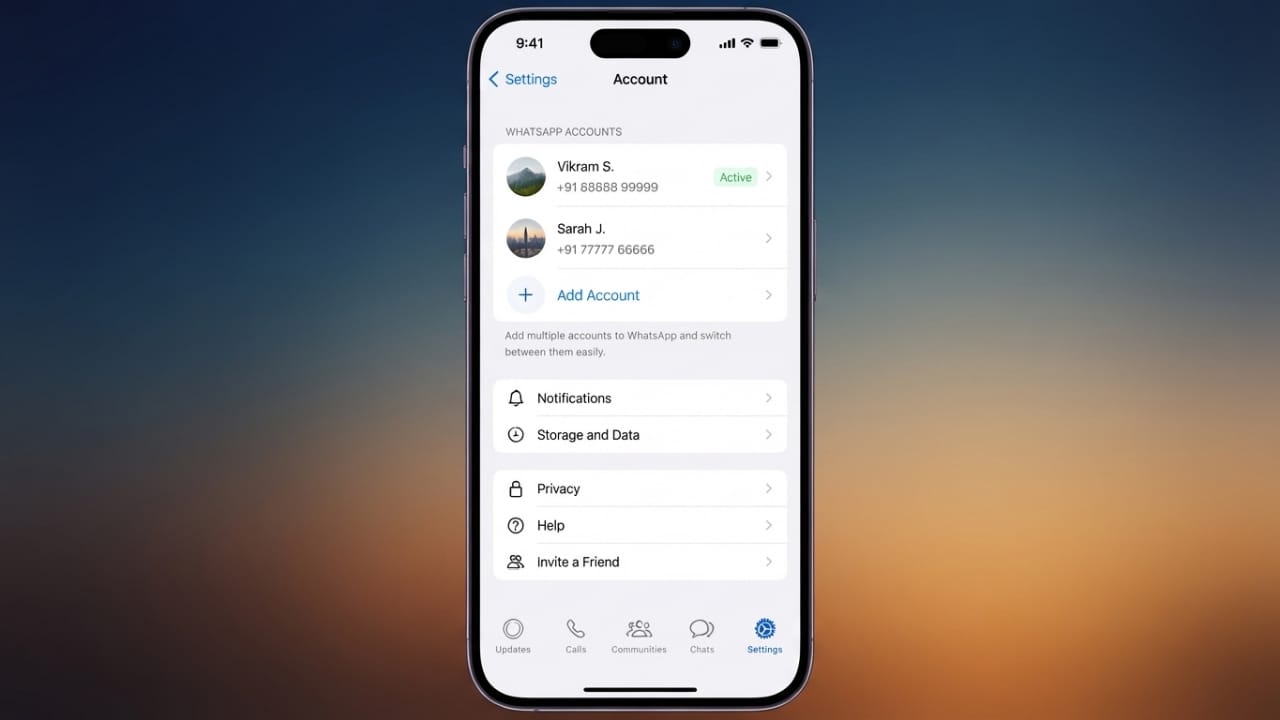
Managing two phone numbers on one iPhone has become much easier. WhatsApp now lets you add and use two different accounts within the same app. This is useful if you want to keep your personal chats separate from work conversations without carrying another phone or installing third-party apps.
Advertisements
In this guide, you’ll learn how to add a second WhatsApp account, switch between accounts, and remove an account safely whenever needed.
Also read: How to Reserve Your Username on WhatsApp: A Complete Guide
Quick Highlights
- Use two WhatsApp accounts in a single iPhone app.
- Keep personal and work conversations separate.
- Switch between accounts in just a few taps.
- Remove an account without uninstalling WhatsApp.
WhatsApp Multiple Accounts: What You Need to Know
WhatsApp’s built-in multiple account feature allows iPhone users to manage two different phone numbers from one app. This removes the need for a second device or unofficial apps that may put your privacy at risk.
Each account works independently. That means every account has its own:
- Chats and messages
- Profile photo
- About section
- Privacy settings
- Notification preferences
Both accounts can receive messages and calls at the same time, so you don’t have to worry about missing important updates.
Requirements Before Adding Another Account
Before you start, make sure you have the following:
- The latest version of WhatsApp installed.
- Your iPhone updated to the latest available iOS version.
- A second mobile number that can receive SMS or phone calls.
- The second number can be linked to either a physical SIM or an eSIM.
Keep in mind that secondary accounts can only be added on your primary iPhone. After setup, companion devices can be connected if supported.
It’s also a good idea to avoid repeated verification attempts in a short period, as WhatsApp may temporarily ask for additional security checks.
How to Add a Second WhatsApp Account on iPhone
Follow these steps to create another WhatsApp account:
- Open WhatsApp on your iPhone.
- Tap Settings from the bottom menu.
- Tap the plus (+) icon or the arrow next to your profile.
- Select Add Account.
- Read and accept WhatsApp’s Terms and Privacy Policy.
- Choose your country and enter your second phone number.
- Tap Continue.
- Enter the verification code received by SMS or choose phone call verification if needed.
- Add your profile name and, if you like, a profile picture and About information.
- Tap Next to complete the setup.
After verification, your second account will be ready to use.
How to Switch Between WhatsApp Accounts
Moving from one account to another is simple.
- Open WhatsApp.
- Go to Settings.
- Tap your profile section.
- Select the account you want to use.
WhatsApp switches accounts without asking you to sign in again. The active profile photo is also displayed, making it easier to confirm you’re using the correct account.
Benefits of Using Multiple WhatsApp Accounts
Using two accounts in one app offers several advantages:
- Keep work and personal conversations organized.
- Manage two phone numbers from one iPhone.
- Use separate privacy settings for each account.
- Receive notifications from both accounts.
- Avoid carrying an extra smartphone.
- Stay away from unofficial third-party apps.
How to Remove a WhatsApp Account from iPhone
If you no longer need one of your accounts on the device, you can remove it without deleting the WhatsApp app.
Advertisements
Here’s how:
- Open WhatsApp and switch to the account you want to remove.
- Go to Settings.
- Open Account.
- Back up your chats if you want to keep them.
- Tap Remove Account.
- Confirm your phone number.
- Tap Remove to finish.
Removing an account only disconnects it from your iPhone. You can sign in again later using the same number if needed.
Remove Account vs Delete Account
These two options are different.
Removing an account only signs it out from your current iPhone. Your chats, contacts, groups, and account remain available when you log in again. However, messages that haven’t been backed up may not be recoverable.
Deleting an account permanently removes your WhatsApp account and associated data. Your chat history, backups, group memberships, and other account information may no longer be available after deletion. Choose this option only if you are sure you no longer want to use the account.
Common Issues and Solutions
If you don’t see the Add Account option, try these tips:
- Update WhatsApp to the latest version.
- Install the latest iOS update.
- Make sure the feature is available in your region.
- Check your internet connection.
- Verify that your country code and phone number are entered correctly.
- If the SMS code doesn’t arrive, use the phone call verification option.
Also read: How to Enable the New Network Speed Indicator on Samsung Galaxy Phones
Final Thoughts
WhatsApp’s multiple account feature makes it much easier to manage personal and professional conversations on a single iPhone. Since everything is built into the official app, you don’t need extra devices or third-party tools.
For the best experience, keep WhatsApp and your iPhone updated. This helps you access new features, improves security, and ensures smooth performance.

Abhi Rajput, founder of EarnAbhi.in, is a tech lover with 6+ years of experience in SEO, digital tools, and smartphone troubleshooting. He writes simple, clear, and useful guides to help people solve real tech problems.