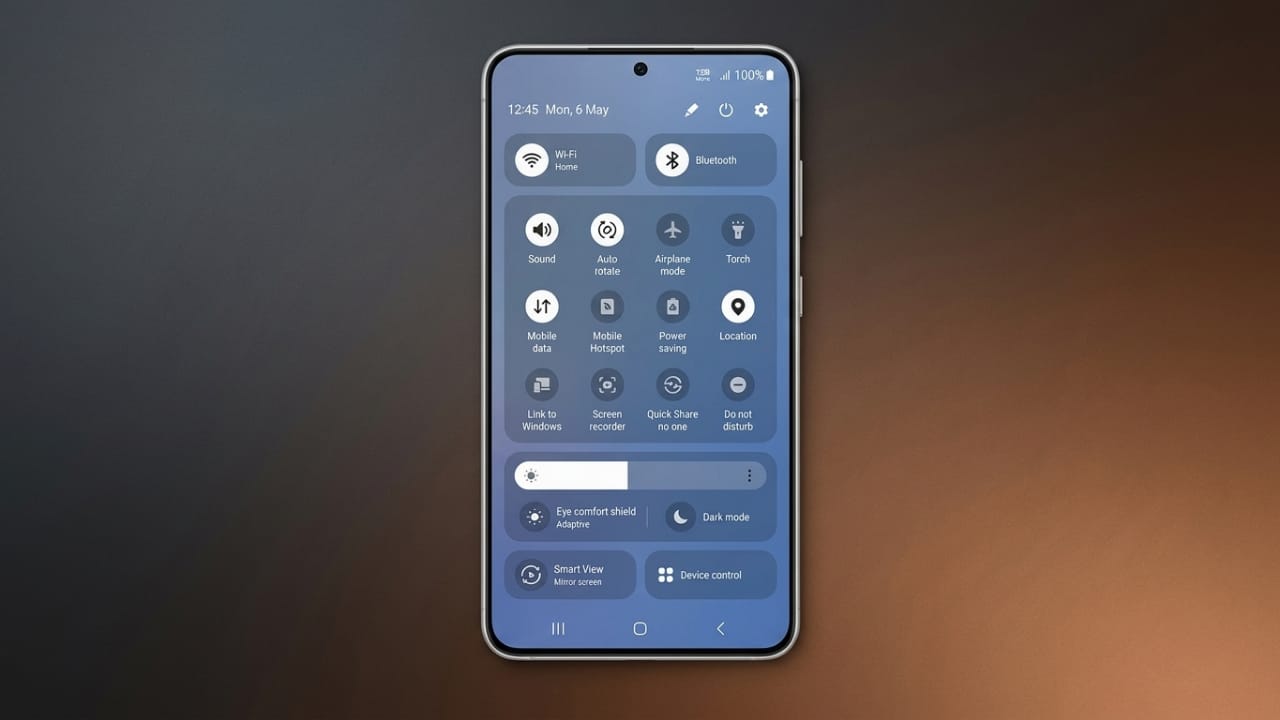
Samsung has introduced a built-in Network Speed Indicator for Galaxy smartphones, making it easier to monitor your internet connection in real time. Instead of relying on third-party apps, you can now see your current upload and download speed directly in the status bar.
This feature is useful for checking whether your internet connection is performing well while browsing, streaming videos, downloading files, or using mobile data.
Advertisements
Also read: How to Stop Calendar Spam on iPhone and Remove Fake Calendar Invites
Key Highlights
- Samsung Galaxy phones now support an official Network Speed Indicator.
- It displays real-time upload and download speeds.
- The feature works with both Wi-Fi and mobile data.
- It currently requires One UI 9 and the QuickStar plugin from Good Lock.
What’s New?
For years, many Samsung users wanted a built-in way to monitor internet speed. Several Android brands already offered this feature, but Galaxy devices required users to install third-party apps or use advanced methods that were not officially supported.
Samsung has now added this functionality through QuickStar, a plugin available in the Good Lock app. Although it is not yet a standard One UI feature, it provides a simple and official way to view network speed.
Once enabled, the speed indicator appears in the status bar alongside other system icons. It updates continuously during active internet usage and displays speeds in units such as KB/s or MB/s, depending on the data transfer rate.
The feature works with both Wi-Fi and mobile data, allowing users to monitor their connection wherever they are.
Supported Devices
At the moment, the Network Speed Indicator is available on devices running One UI 9, which is based on Android 17.
The feature is currently available through the One UI 9 beta for selected Galaxy smartphones, including the Galaxy S26 series and some Galaxy S25 models in supported regions.
To use the feature, you’ll also need QuickStar version 11.0.03.15 or later. If the latest version is not available in your region, you may need to wait until Samsung releases the update through Good Lock.
As Samsung expands the One UI 9 rollout, more Galaxy devices are expected to receive support. However, the company has not yet confirmed compatibility for all older Galaxy models.
How to Enable the Network Speed Indicator
Follow these steps to turn on the feature:
- Install Good Lock from the Galaxy Store.
- Make sure your phone is running One UI 9.
- Open the Good Lock app.
- Go to the Plugins section.
- Install or update QuickStar to version 11.0.03.15 or newer.
- Open QuickStar.
- Enable the main QuickStar toggle.
- Tap Visibility of Indicator Icons.
- Turn on the Network Speed option.
The network speed indicator will appear in the status bar immediately. If you no longer need it, simply return to the same QuickStar settings and switch the option off.
Why Is This Feature Useful?
The Network Speed Indicator helps you understand how fast your internet connection is in real time. It does not replace the Wi-Fi or mobile signal icons, which only show signal strength.
Instead, this feature shows the actual data transfer speed, making it easier to identify internet-related issues. For example, if videos buffer, downloads slow down, or app updates take longer than expected, you can quickly check whether the problem is related to your network connection.
It also helps you compare Wi-Fi and mobile data performance without opening additional apps.
Also read: How to Merge and Remove Duplicate Contacts on an Android Phone
Final Thoughts
The new Network Speed Indicator is a small but practical addition for Samsung Galaxy users. It offers a convenient way to monitor internet performance directly from the status bar without installing separate speed-monitoring apps.
Although the feature is currently available only on supported One UI 9 devices with the QuickStar plugin, Samsung is expected to expand availability as newer software updates roll out to more Galaxy smartphones.

Abhi Rajput, founder of EarnAbhi.in, is a tech lover with 6+ years of experience in SEO, digital tools, and smartphone troubleshooting. He writes simple, clear, and useful guides to help people solve real tech problems.