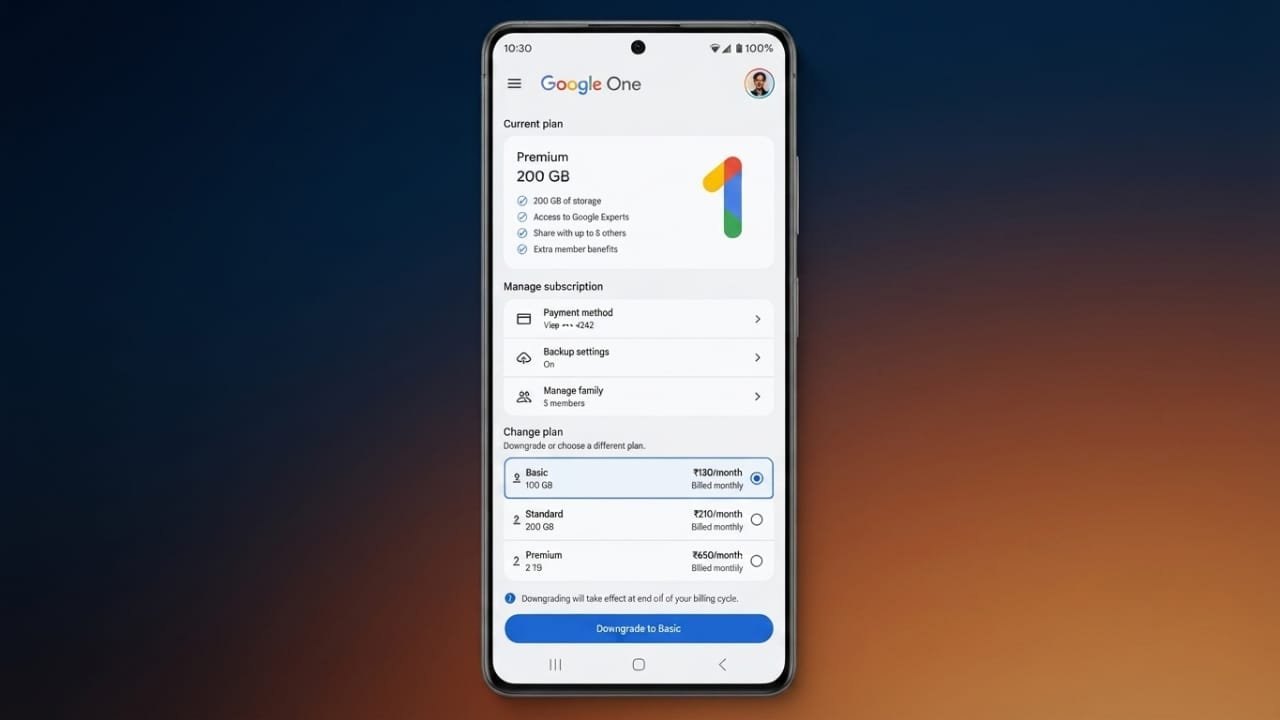
If you no longer need as much cloud storage as before, you don’t have to cancel your Google One subscription completely. Google allows eligible users to switch to a lower-priced plan while keeping their subscription active.
Advertisements
The process is simple once you know where to look. This guide explains how to downgrade your Google One plan on different devices and highlights a few important billing details to keep in mind.
Also read: How to Use Live Captions in Google Meet: A Simple Step-by-Step Guide
Quick Summary
- Review your renewal date before the next payment is charged.
- Lower-priced plans may be hidden under the See All Plans option.
- Downgrades usually take effect after your current billing cycle ends.
- Google One subscriptions are generally not refundable.
How to Downgrade Your Google One Plan
You can change your Google One subscription from a computer, Android phone, or Apple device. The steps are slightly different for each platform.
Downgrade Using the Google One Website
If you’re using a desktop or laptop, follow these steps:
- Visit the Google One website and sign in.
- Click the Settings icon.
- Select Change membership plan.
- Scroll to the bottom of the page.
- Click See All Plans or See More Plans if available.
- Open the More Options section.
- Choose the lower storage plan you want.
- Confirm your selection to save the changes.
Downgrade on an Android Device
Android users can update their plan directly from the Google One app.
Steps:
- Open the Google One app.
- Tap the menu icon.
- Go to Settings.
- Select Change membership plan.
- View the available downgrade options.
- Pick your preferred storage plan.
- Confirm the change.
Downgrade on iPhone or iPad
If you subscribed through Apple, you’ll manage the subscription in your device settings.
Follow these steps:
- Open the Settings app.
- Tap your Apple ID at the top.
- Select Subscriptions.
- Open your Google One subscription.
- Tap See All Plans.
- Choose a smaller storage option.
- Confirm the update.
Downgrading Before Your Renewal Date
It’s a good idea to review your subscription before the next billing date. If you wait too long, the renewal charge may be processed automatically.
Some users move to a higher storage plan because of promotional offers that include extra cloud storage and additional features. Once the promotion ends, the regular monthly price may be much higher than expected.
If you no longer need the extra storage or premium features, switching to a lower plan before renewal can help reduce your monthly cost.
Where to Find Lower-Priced Plans
Many people think the cheaper plans have disappeared because Google often displays larger storage options first.
To see all available plans:
- Open Manage.
- Select Change Membership Plan.
- Tap or click See All Plans.
This section usually includes smaller and more affordable options.
Common choices include:
- 100GB storage
- 200GB storage
- Standard 2TB plan without premium AI features (where available)
Important Billing Information
Before changing your subscription, keep these points in mind:
- Downgrades normally become active after your current billing period ends.
- Upgrades usually start immediately.
- Google One purchases are generally not eligible for refunds.
- Your current storage remains available until the billing cycle finishes.
- If you cancel your subscription, it stays active until the paid period ends.
- You can subscribe again later if needed.
Promotional Offers
Some eligible Pixel device owners may receive promotional Google One offers with selected purchases. These offers must usually be claimed manually.
To check if you have an available promotion:
- Open the Google One or Gemini app.
- Look for any promotional banner or notification.
- Follow the instructions before the offer expires.
Because reminder emails are not always sent, it’s a good idea to check your account regularly.
How to Check Your Renewal Date
To avoid unexpected charges, review your renewal information in advance.
Go to your Google Account, open Payments and Subscriptions, and check the next billing date. This lets you downgrade your plan before the upcoming payment is processed.
Also read: iPadOS 26 Brings Mac-Like Multitasking to iPad: Everything You Need to Know
Final Thoughts
If your current cloud storage is more than you need, downgrading your Google One plan is an easy way to reduce your monthly cost without cancelling your subscription. Just remember to check your renewal date, explore all available plans, and make any changes before the next billing cycle begins.

Abhi Rajput, founder of EarnAbhi.in, is a tech lover with 6+ years of experience in SEO, digital tools, and smartphone troubleshooting. He writes simple, clear, and useful guides to help people solve real tech problems.
Advertisements