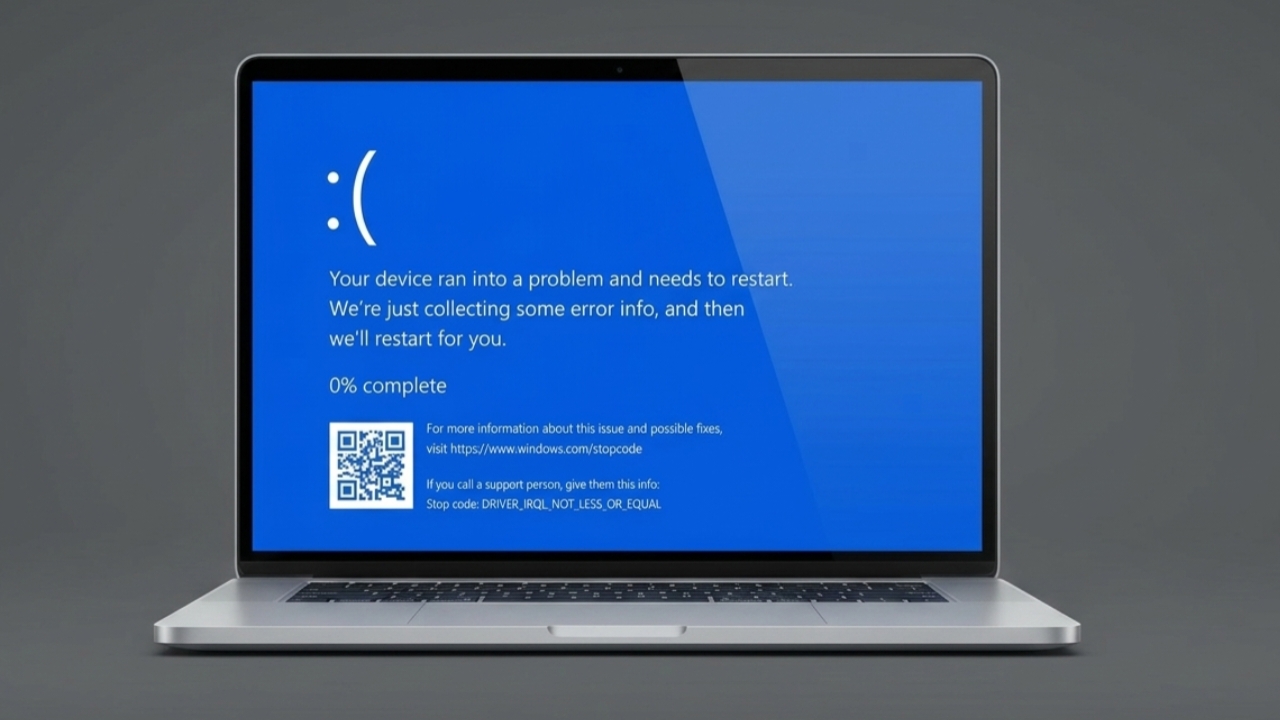
A Blue Screen of Death (BSOD) in Windows 11 can be frustrating because it suddenly stops your work and forces the computer to restart. These errors can happen for several reasons, including hardware problems, outdated drivers, corrupted system files, or software conflicts.
Advertisements
The good news is that most blue screen issues can be fixed by following a few troubleshooting steps. This guide explains the process in a simple and easy-to-follow way.
Also read: Apple Introduces Smarter AI Photo Editing Tools in the Photos App
Quick Summary
- Disconnect external devices and inspect hardware connections.
- Repair damaged startup and system files.
- Install the latest Windows, driver, and BIOS updates.
- Check memory and hardware components for faults.
- Remove problematic software and drivers.
Start With Basic Troubleshooting
Before trying advanced solutions, begin with a few simple checks. In many cases, these quick steps are enough to resolve the problem.
Disconnect External Devices
External hardware can sometimes trigger system crashes.
Turn off your computer and disconnect any devices that are not required for startup, such as:
- Printers
- USB storage drives
- Webcams
- Headphones
- Docking stations
- HDMI accessories
Keep only the keyboard and mouse connected. Restart the computer and see if Windows loads normally.
If the system works correctly, reconnect the devices one at a time until you identify the device causing the issue.
Perform a Hard Reset
Temporary software glitches can occasionally cause startup problems.
- Shut down the computer completely.
- Disconnect the power cable.
- Remove the battery if your laptop supports battery removal.
- Press and hold the power button for about 20 seconds.
- Reconnect the power source and turn the computer on again.
This process clears residual electrical charge and may resolve temporary issues.
Advanced Repair Methods
If the blue screen continues to appear, move on to the following repair solutions.
Reset BIOS or UEFI Settings
Incorrect BIOS settings can affect system stability.
- Restart the computer.
- Enter BIOS or UEFI setup by pressing the required key during startup (commonly F2, Del, or another key depending on the manufacturer).
- Find the option to restore default settings.
- Save the changes and restart the system.
Restoring default BIOS settings can eliminate configuration-related errors.
Run Hardware Diagnostics
Faulty hardware is a common cause of BSOD errors.
Most computer manufacturers provide built-in diagnostic tools that can test components such as:
- Hard drives and SSDs
- Memory (RAM)
- Processor
- Motherboard components
Run a complete hardware scan and note any error codes that appear. These codes can help identify defective hardware.
Use Manufacturer Troubleshooting Tools
Many computer brands include support utilities that can scan the system for hardware and driver issues.
Open the support application provided by your manufacturer and run a full system check. These tools can often detect driver problems, missing updates, and hardware faults automatically.
Repair Startup Files
Corrupted startup files can prevent Windows from loading properly.
To launch Startup Repair:
- Interrupt the Windows startup process three times by turning off the PC while it is booting.
- Windows should open the Recovery Environment automatically.
- Select Troubleshoot.
- Open Advanced Options.
- Choose Startup Repair.
Follow the on-screen instructions and allow Windows to repair startup-related problems.
Use Recovery Tools
If Windows system files are damaged, built-in recovery options may help restore normal operation.
Access the recovery environment from the boot menu and select the available repair options. These tools can repair important system components without affecting personal files.
Tips to Prevent Future Blue Screen Errors
Regular maintenance can significantly reduce the chance of future system crashes.
Keep Drivers and BIOS Updated
Old drivers may not work correctly with newer Windows updates.
Check regularly for updates related to:
- Graphics drivers
- Network drivers
- Audio drivers
- BIOS firmware
Installing the latest versions can improve compatibility and system stability.
Install Windows Updates
Microsoft frequently releases updates that fix bugs and improve performance.
To check for updates:
- Open Settings.
- Go to Windows Update.
- Click Check for Updates.
- Install all available updates.
Restart the computer after the installation is complete.
Repair Corrupted System Files
Damaged Windows files can cause recurring crashes.
Open PowerShell or Command Prompt as Administrator and run system repair tools such as DISM and System File Checker (SFC).
These tools scan Windows for corruption and automatically replace damaged files when possible.
Remove Unnecessary Programs
Software conflicts can sometimes lead to blue screen errors.
Review installed applications and uninstall:
- Programs you no longer use
- Unknown applications
- Software installed shortly before the problem started
Removing unnecessary software can improve both performance and stability.
Roll Back Recent Driver Updates
Sometimes a newly installed driver introduces compatibility issues.
If the problem began after updating a driver:
- Open Device Manager.
- Locate the affected device.
- Open its Properties window.
- Use the Roll Back Driver option if available.
Returning to an earlier driver version may solve the issue.
Check System Memory (RAM)
Defective RAM can trigger random crashes and blue screens.
Use the Windows Memory Diagnostic tool to test your memory:
- Search for Windows Memory Diagnostic.
- Select Restart now and check for problems.
- Allow the test to complete.
If errors are detected, the RAM may need replacement.
Reinstall Windows as a Last Resort
If none of the above solutions work, reinstalling Windows may be necessary.
Before starting:
- Back up important files.
- Save documents, photos, and other personal data.
- Create installation media if required.
A clean installation removes software-related issues and gives the operating system a fresh start.
Also read: Hidden iPhone Setting That Can Help Reduce Eye Strain: How to Turn On Screen Distance
Final Thoughts
Blue screen errors in Windows 11 can occur for many different reasons, but they are often fixable with the right approach. Start with simple checks such as disconnecting external devices and performing a hard reset. If the problem continues, repair startup files, update drivers, check hardware health, and install the latest Windows updates.
Regular maintenance, timely updates, and routine hardware checks can help keep your computer stable and reduce the risk of future crashes.

Abhi Rajput, founder of EarnAbhi.in, is a tech lover with 6+ years of experience in SEO, digital tools, and smartphone troubleshooting. He writes simple, clear, and useful guides to help people solve real tech problems.
Advertisements