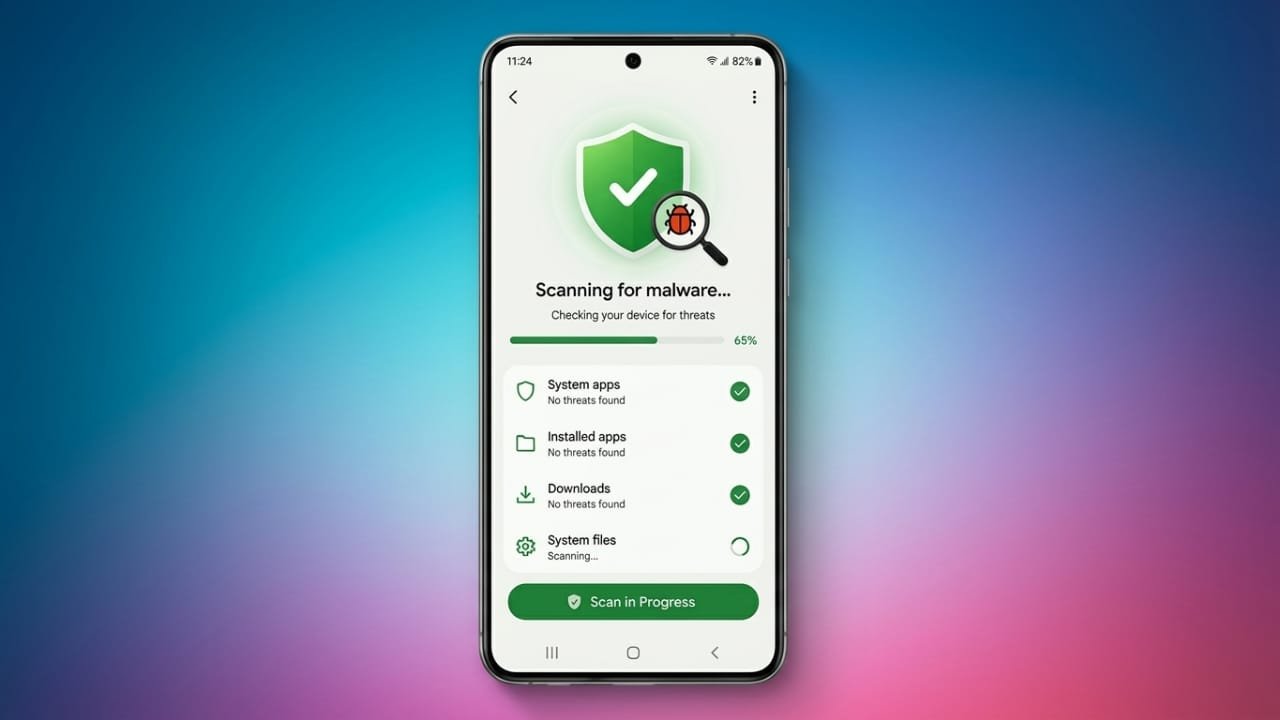
Malware can affect the way your Android phone works. It may make the device slower, reduce battery life, display unwanted ads, or even try to access personal information. Knowing how to recognize the warning signs and remove harmful apps can help keep your phone secure.
Also read: How to Use the Vitals App on Apple Watch: A Quick Guide
Advertisements
Key Points
- Learn the common signs of malware on Android.
- Scan your phone with a trusted security app.
- Remove suspicious apps and unwanted notifications.
- Use a factory reset only if the problem continues.
Signs Your Android Phone May Have Malware
Malware is not always easy to notice. In many cases, it runs in the background without showing obvious warnings. However, some changes in your phone’s performance may indicate a problem.
Watch for these signs:
- Your phone becomes unusually slow.
- The battery drains much faster than normal.
- Storage space decreases without a clear reason.
- Apps crash or freeze repeatedly.
- The device feels hotter than usual.
- Unknown apps appear even though you didn’t install them.
- Pop-up ads appear frequently.
- Your browser opens unfamiliar websites on its own.
- You receive fake security alerts or virus warnings.
- Unusual text messages are sent from your phone.
- Mobile data usage suddenly increases.
Keep in mind that these symptoms do not always mean malware is present, but they are worth checking.
Scan Your Phone with a Trusted Security App
Using a reliable mobile security app is one of the easiest ways to check for malware.
Popular options include Bitdefender Mobile Security and Kaspersky Antivirus, both available through trusted sources such as the Google Play Store.
After installing a security app:
- Open the app.
- Complete the initial setup if required.
- Start a full device scan.
- Wait for the scan to finish.
- Follow the recommended steps if any threats are detected.
Keeping your security app updated helps improve its ability to detect new threats.
Check Installed Apps Manually
A manual review can also help identify suspicious software.
Open Settings and view your list of installed apps. Look for applications that:
- You do not remember installing.
- Have unusual names or icons.
- Request permissions that don’t match their purpose.
If an app seems suspicious, uninstall it if possible.
Remove Apps That Won’t Uninstall
Some malicious apps use special permissions to prevent removal.
If an app cannot be uninstalled normally:
- Open Settings on your phone.
- Go to the Security or Device Admin Apps section (the location may vary by device).
- Find the suspicious app.
- Disable its administrator privileges.
- Return to the app list and uninstall it.
You should also remove notification permissions from suspicious websites if they continue sending unwanted alerts.
When a Factory Reset May Be Necessary
If malware keeps returning even after removing suspicious apps, a factory reset may be the best solution.
Before resetting your phone:
- Back up important photos, contacts, and other personal files.
- Make sure you know your account login details.
After the reset, install apps only from trusted sources and avoid restoring unknown applications that could bring the problem back.
Also read: How to Fix Google Discover Not Working on Android (Complete Guide)
Final Thoughts
Protecting your Android phone starts with paying attention to unusual behavior. If you notice warning signs, scan your device with trusted security software, remove suspicious apps, and review app permissions. If the infection continues despite these steps, a factory reset can help restore your device to a clean state. Staying cautious about the apps you install and keeping your phone updated are simple habits that can improve your overall security.

Abhi Rajput, founder of EarnAbhi.in, is a tech lover with 6+ years of experience in SEO, digital tools, and smartphone troubleshooting. He writes simple, clear, and useful guides to help people solve real tech problems.