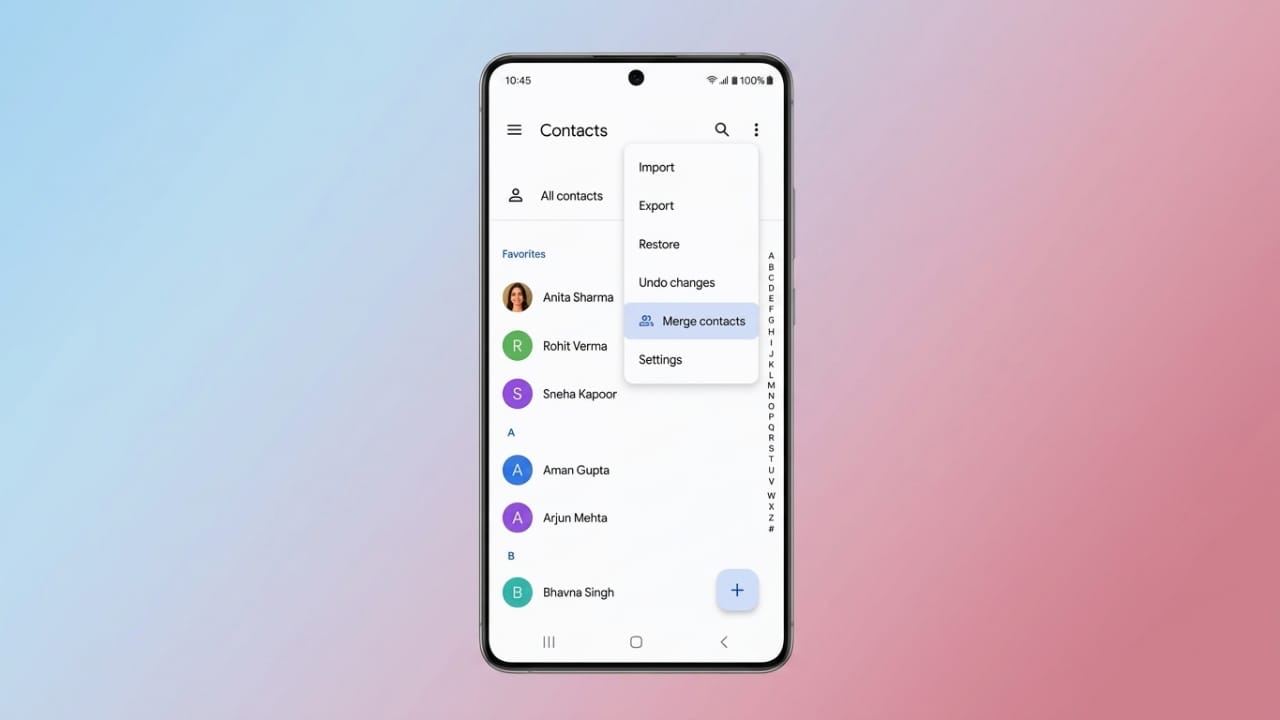
A contact list filled with duplicate entries can make it harder to find the right person when you need to call or send a message. Duplicate contacts often appear after syncing multiple accounts, restoring backups, or moving to a new phone. Fortunately, Android provides several easy ways to merge or remove these extra entries and keep your contact list organized.
Also read: How to Stop Calendar Spam on iPhone and Remove Fake Calendar Invites
Advertisements
Key Highlights
- Duplicate contacts usually appear because of syncing, imports, or backups.
- Most Android phones include a built-in option to merge duplicate contacts.
- Google Contacts also lets you combine or delete repeated entries.
- Third-party contact management apps can save time if you have a large contact list.
Why Do Duplicate Contacts Appear?
Duplicate contacts are a common issue for Android users. They usually appear when the same contact is saved in more than one location.
Some common reasons include:
- Syncing contacts from multiple Google accounts.
- Importing contacts from another phone or SIM card.
- Restoring the same backup more than once.
- Saving contacts using messaging or third-party apps.
- Switching to a new Android phone without cleaning old data.
- Using multiple contact management applications at the same time.
As your contact list grows over the years, repeated entries become more common and can make managing contacts difficult.
Why You Should Remove Duplicate Contacts
Keeping your contact list clean offers several advantages.
Some of the main benefits are:
- Find contacts more quickly.
- Keep your phonebook well organized.
- Reduce confusion while calling or messaging.
- Free up a small amount of storage space.
- Improve overall contact management.
- Avoid saving the same person’s information multiple times.
A tidy contact list makes everyday smartphone use much easier.
Method 1: Merge Contacts Using the Android Contacts App
Many Android devices, including phones from Samsung and OnePlus, include a feature that detects duplicate contacts.
Follow these steps:
- Open the Contacts app.
- Tap the Menu or Settings option.
- Open Contacts Manager or a similar setting (the name may vary by device).
- Select Merge Contacts.
- Review the suggested duplicate contacts.
- Tap Merge for individual suggestions or Quick Merge to combine all detected duplicates.
After the process is complete, duplicate entries will be merged into a single contact where possible.
Method 2: Use Google Contacts
If your contacts are synced with your Google account, you can manage them through Google Contacts.
Steps:
- Open Google Contacts in your web browser.
- Sign in with the Google account linked to your phone.
- Check your contact list for duplicate entries.
- Select the contacts you want to combine.
- Choose the Merge option.
If you prefer to remove extra entries instead of merging them:
- Select the unwanted duplicate contacts.
- Click the menu (three dots).
- Choose Delete or Move to Trash.
Method 3: Merge Contacts Through Gmail
If your contacts are synced with Gmail, Google can automatically search for duplicates.
Here’s how:
- Sign in to your Gmail account.
- Open Contacts.
- Select Find & Merge Duplicates (or the available merge option).
- Review Google’s suggestions.
- Deselect any contacts you don’t want to merge.
- Click Merge to finish.
This method is useful for users who store most of their contacts in their Google account.
Limitations of Manual Methods
Built-in tools work well for small contact lists, but they may not be the best choice for large collections.
Some limitations include:
- Cleaning a large contact list can take time.
- It’s easy to accidentally merge the wrong contacts.
- Some merged changes may not be easy to undo.
- Certain duplicate entries may not be detected automatically.
Using Third-Party Apps for Large Contact Lists
If you have hundreds or thousands of contacts, a trusted contact management app can make the process faster.
Many apps can:
- Detect duplicate contacts automatically.
- Merge contact information without losing important details.
- Remove multiple duplicates in one go.
- Support different contact file formats such as VCF.
- Offer simple tools that are easy for both beginners and advanced users.
Choose well-known apps from trusted sources, review their permissions carefully, and back up your contacts before making large changes.
Also read: How to Set Any Song as Your iPhone Alarm Sound
Final Thoughts
Duplicate contacts are a common problem, but they are easy to manage with the right tools. Whether you use your phone’s built-in merge feature, Google Contacts, or a reliable contact management app, keeping your contact list clean helps you stay organized and makes finding the right contact much faster. Regularly reviewing your contacts can also help prevent duplicate entries from building up again in the future.

Abhi Rajput, founder of EarnAbhi.in, is a tech lover with 6+ years of experience in SEO, digital tools, and smartphone troubleshooting. He writes simple, clear, and useful guides to help people solve real tech problems.